Developers often need a lightweight, open protocol that lets any application command a robot without proprietary SDKs.
The answer is to expose a small set of HTTP endpoints for movement and an MJPEG stream for vision, a pattern already used in Qubitpage's Baby Carpathron ESP32‑CAM robot.
Why choose HTTP and MJPEG for robot control
Ubiquity and firewall‑friendliness of HTTP
HTTP is the foundation of the modern web, which means every operating system, router and cloud service already knows how to handle it. A robot that exposes its control API over plain HTTP can be reached from a laptop, a phone or a cloud function without installing custom drivers or opening non‑standard ports. Because HTTP traffic uses port 80 (or 443 for TLS), most corporate firewalls and NAT devices allow it by default, reducing the need for complex network configuration.
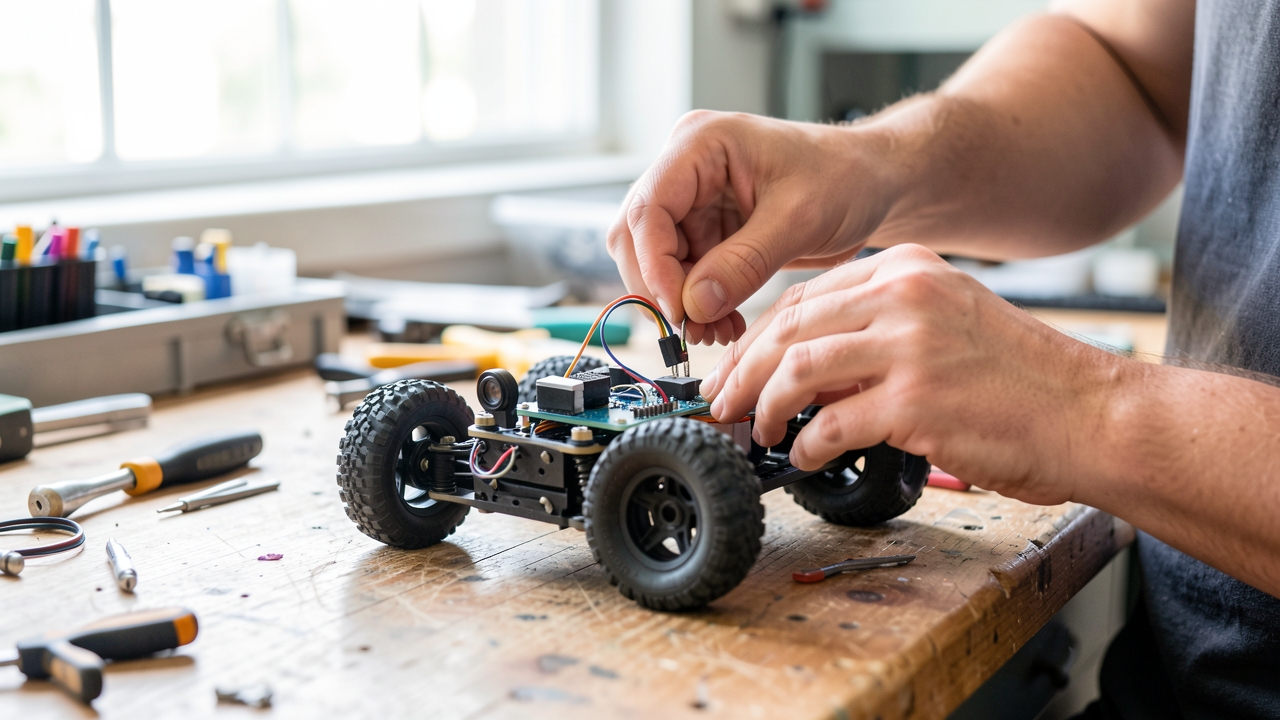
In the Carpathron Robotics project the Baby Carpathron ESP32‑CAM robot car uses the same approach. Its firmware runs a lightweight web server that listens on http://192.168.1.42. Commands such as /move or /led are sent with simple GET or POST requests, and the robot responds with JSON payloads. This design lets developers test the robot from any browser, from the Carpathron Remote app (software/carpathron-remote), or from the AI‑assisted Carpathon Robotics & Coding desktop agent available on the Microsoft Store.
Simplicity of MJPEG for live video
MJPEG streams consist of a sequence of JPEG images delivered over an HTTP multipart response. Unlike WebRTC or RTSP, MJPEG requires no negotiation, no separate signaling channel and no specialized client libraries. A standard <img src="http://…/stream"> tag or any modern browser can render the video in real time, which is ideal for rapid prototyping and debugging.
The Baby Carpathron robot car implements its camera feed with the open Carpathron Robot Protocol. The ESP32‑CAM serves an MJPEG endpoint at /mjpeg, and the Carpathron Avatar app on Meta Quest 3/3S consumes the same URL to display a head‑tracked view of the robot’s surroundings. Because the video is delivered over HTTP, the same firewall rules that allow command traffic also permit the video stream, keeping the network footprint minimal.
Real‑world benefits for developers
Choosing HTTP and MJPEG removes the need for custom SDKs. A developer can curl a command, open a browser tab for video, and integrate the endpoints into existing web frameworks with a few lines of code. This lowers the entry barrier for hobbyists and accelerates adoption in educational settings, where the Carpathron Robotics platform is already used to teach Arduino and ESP32 programming.
Moreover, HTTP’s stateless nature simplifies scaling. Multiple robots can share a single reverse proxy, and load balancers can distribute traffic without rewriting the protocol. MJPEG’s lack of compression latency ensures that the visual feedback remains responsive, which is crucial when steering the robot by turning your head in the Meta Quest interface.
Overall, the combination of HTTP for command and control and MJPEG for live video provides a straightforward, firewall‑compatible, and browser‑ready foundation that the Carpathron Robotics ecosystem leverages to deliver a consistent experience across the Baby Carpathron robot, the Windows AI agent, and future modular humanoid platforms.
Core API design – endpoints and payloads
RESTful command set
The Carpathon Robot Protocol defines a minimal set of HTTP endpoints that cover most hobby‑grade robot actions. Each endpoint accepts a JSON body and returns a JSON status object. The base URL is the robot’s IP address, for example http://192.168.4.10/api. The essential endpoints are:
- /move – instructs the robot to drive forward, backward or turn. The payload contains
direction(one offorward,backward,left,right) andspeed(0‑255). - /stop – halts all motion immediately. No payload is required; an empty JSON object (
{}) is accepted. - /status – returns current sensor readings, battery level, and last command timestamp. The response is a JSON object; the request body is ignored.
- /camera/start and /camera/stop – control the MJPEG stream on the ESP32‑CAM. The start endpoint can include an optional
resolutionfield (e.g.,640x480). - /ping – lightweight health check used by the Carpathron Avatar to verify connectivity.
All endpoints are accessed with the HTTP POST method except /status and /ping, which accept GET. The robot never requires a licence for incoming connections; this complies with the Carpathron Remote policy that permits unrestricted local network access.
JSON payload structure
Each command follows a consistent schema, making client libraries easy to generate. The generic request envelope looks like:
{
  "request_id": "a1b2c3d4",
  "timestamp": "2026-09-15T12:34:56Z",
  "payload": { … }
}
For /move, the payload object contains:
{
  "direction": "forward",
  "speed": 180,
  "duration_ms": 1500
}
The response envelope mirrors the request, adding a status field and optional data for sensor values:
{
  "request_id": "a1b2c3d4",
  "timestamp": "2026-09-15T12:34:57Z",
  "status": "ok",
  "data": {
    "battery": 87,
    "temperature_c": 32.5
  }
}
If an error occurs, the status field is set to error and an error_message string is provided. This uniform pattern simplifies logging and automated retries.
Versioning and extensibility
The protocol reserves a /v1/ prefix in the URL (e.g., /v1/move) to allow future extensions without breaking existing clients. New commands such as /arm or /lights can be added under the same version. Because the robot runs a lightweight HTTP server, the overhead of versioning is negligible.
Tip: When integrating with the Carpathron Avatar, use the Carpathron Remote endpoint
/pingevery 5 seconds to keep the WebSocket session alive and avoid unnecessary reconnections.
Setting up the MJPEG video stream
Flash the ESP32‑CAM firmware
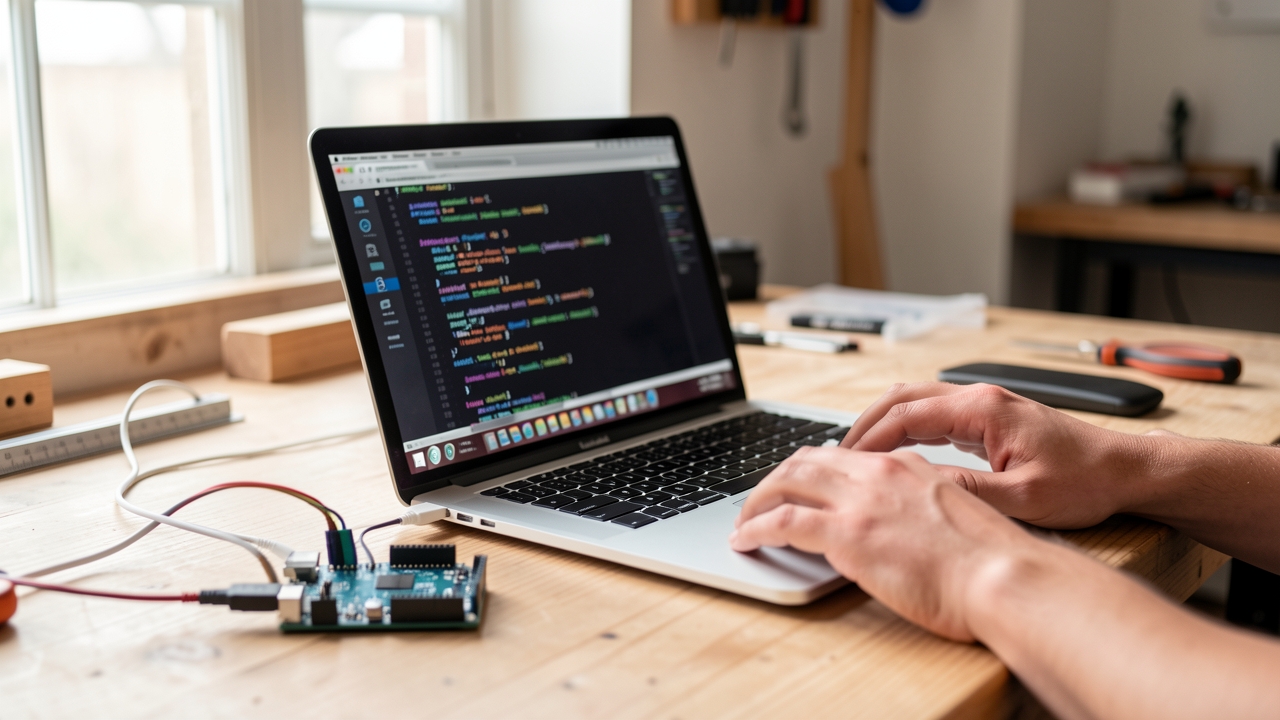
Download the CarpathronCam.ino sketch from the Carpathron robotics repository on GitHub. Open the project in the Arduino IDE, select AI‑Thinker ESP32‑CAM as the board, and configure the Wi‑Fi credentials in the setup() section:
const char* ssid = "YOUR_SSID";
const char* password = "YOUR_PASSWORD";
Compile and upload the sketch using a USB‑to‑TTL adapter. The firmware starts a web server on port 80 and begins broadcasting MJPEG frames from the onboard camera.
Verify the HTTP endpoint
After the ESP32‑CAM reboots, it prints its IP address on the serial monitor, for example 192.168.1.42. The MJPEG stream is available at:
http://192.168.1.42:80/mjpegOpen this URL in a browser; you should see a continuously updating video. The server sends the following headers, which are required for MJPEG compatibility:
Content-Type: multipart/x-mixed-replace; boundary=frameCache-Control: no-cachePragma: no-cache
Integrate the stream with Carpathron Remote
Launch the Carpathron Robotics & Coding app from the Microsoft Store (Carpathron Robotics). In the Video tab, add a new source and paste the MJPEG URL. The app automatically adds the required headers, so the video appears in the control dashboard alongside the robot control panel.
Adjust resolution and frame rate
The default configuration streams at 640×480 px, 15 fps. To lower bandwidth, edit the sketch constants before flashing:
#define FRAMESIZE FRAMESIZE_QVGA   // 320×240
#define FRAME_RATE 10               // fps
Re‑upload the firmware; the new settings take effect immediately. Verify the change by checking the Content-Length header in the browser developer tools – it should decrease proportionally.
Troubleshoot common issues
If the stream returns 404 Not Found, confirm that the ESP32‑CAM is running the latest Carpathron firmware and that the URL path is exactly /mjpeg. A 403 Forbidden response usually indicates that the device is still connecting to Wi‑Fi; wait until the serial monitor shows WiFi connected. For intermittent freezes, reduce the JPEG quality parameter in the sketch:
#define JPEG_QUALITY 12 // lower value = higher compressionFinally, ensure that the robot and the controlling workstation share the same subnet; otherwise the HTTP request will never reach the ESP32‑CAM.
Step‑by‑step: Implementing the protocol on a Linux robot
Below is a concise guide for turning a generic Linux board—such as a Raspberry Pi or ESP32‑CAM running Linux—into a robot that speaks the Carpathron Robot Protocol over HTTP. The procedure assumes a fresh OS install with sudo privileges.
- Install a lightweight web server. Run
sudo apt-get update && sudo apt-get install -y nginx. The default configuration listens on port 80 and serves files from/var/www/html. - Create the API directory. Execute
sudo mkdir -p /var/www/html/api/v1and set ownership to thewww-datauser:sudo chown -R www-data:www-data /var/www/html/api. This isolates control endpoints from static assets. - Write the control script. Save the following Python Flask snippet as
/var/www/html/api/v1/control.py:
Then install Flask withfrom flask import Flask, request, jsonify app = Flask(__name__) @app.route('/api/v1/move', methods=['POST']) def move(): cmd = request.json.get('action') # Example: forward, left, stop # Insert hardware‑specific code here return jsonify(status='ok', executed=cmd) if __name__ == '__main__': app.run(host='0.0.0.0', port=8080)sudo pip3 install flask. - Expose the Flask service through Nginx. Add a location block to
/etc/nginx/sites-available/default:
Reload Nginx:location /api/v1/ { proxy_pass http://127.0.0.1:8080/; proxy_set_header Host $host; }sudo systemctl reload nginx. The robot now accepts JSON POSTs athttp://<ip>/api/v1/move. - Set up the MJPEG stream. Install
mjpg-streamer(sudo apt-get install -y mjpg-streamer) and start it pointing to the camera device:mjpg_streamer -i "input_uvc.so -d /dev/video0 -r 640x480 -f 30" -o "output_http.so -p 8090 -w /usr/local/share/mjpg-streamer/www". The stream is reachable athttp://<ip>:8090/?action=stream. - Link the stream in the API response. Modify
control.pyto include the video URL:
This endpoint lets the Carpathron remote client retrieve the live feed without extra configuration.@app.route('/api/v1/status', methods=['GET']) def status(): return jsonify( video='http://'+request.host.split(':')[0]+':8090/?action=stream', ready=True ) - Enable auto‑start on boot. Create a systemd service file
/etc/systemd/system/carpathron-api.servicewith:
Enable it:[Unit] Description=Carpathron Robot API After=network.target [Service] User=www-data WorkingDirectory=/var/www/html/api/v1 ExecStart=/usr/bin/python3 control.py Restart=on-failure [Install] WantedBy=multi-user.targetsudo systemctl enable --now carpathron-api. The robot now boots with both HTTP control and MJPEG streaming ready. - Verify connectivity. From a workstation, run:
curl -X POST -H "Content-Type: application/json" -d '{"action":"forward"}' http://<robot_ip>/api/v1/moveand openhttp://<robot_ip>:8090in a browser. Successful responses confirm the protocol is operational.
Tip: Keep the Flask process on a non‑standard port (e.g., 8080) and proxy through Nginx. This separation allows you to add TLS termination or rate limiting in Nginx without touching the robot code.
With the HTTP endpoints and MJPEG feed in place, the robot complies with the Carpathron Robot Protocol and can be controlled from the Carpathron remote app or any custom client.
Security checklist for open robot APIs
When exposing robot control endpoints on the public internet, the first line of defense is authentication. A completely open API invites unauthorized command injection, firmware tampering, and data leakage. Even a simple token scheme adds a barrier that stops casual scanners and forces a deliberate request to include a secret value.
For deployments that already rely on the Carpathron Remote AI technician, an additional approval step can be introduced. The AI technician validates the request against a policy engine and can require a human‑in‑the‑loop confirmation through the WhatsApp control channel. This approach is useful for high‑value robots or for environments where remote operators need auditability.
| Security level | Authentication method | Typical use case | Key mitigations |
|---|---|---|---|
| No auth | None | Prototype labs, isolated LAN tests | None; vulnerable to replay attacks, command injection, and unauthorized firmware uploads. |
| Token‑based | Static bearer token in HTTP header (e.g., Authorization: Bearer <token>) |
Production robots on private networks or VPNs | Prevents anonymous access, limits exposure to token holders, enables token rotation and revocation. |
| AI‑technician approval | Dynamic token issued by Carpathron Remote AI technician after policy check; optional WhatsApp confirmation | Field‑deployed utility robots, shared research platforms | Adds contextual validation (time‑of‑day, operator role), logs each approval, and can abort suspicious commands before they reach the robot. |
Implement token verification on the robot firmware side using a lightweight HMAC check. Store the secret in a read‑only section of the ESP32‑CAM flash and rotate it via a secure OTA update. For AI‑technician approval, the robot should expose a /request‑approval endpoint that forwards the incoming command to the Carpathron Remote service; the service returns a signed approval token that the robot then validates before execution.
Network‑level hardening complements authentication. Deploy the robot behind a firewall that only allows inbound traffic on ports 80/443, and enable TLS termination either on the robot (if resources permit) or on a reverse proxy. Use fail2ban or a similar tool to block repeated failed token attempts, and log every request with source IP, timestamp, and command payload for forensic analysis.
Finally, document the security posture in the robot’s public API spec and provide a quick reference for integrators. Linking to the Carpathron Remote documentation (Carpathron Remote) and the product page (Carpathron Robotics & Coding) ensures that developers can retrieve the latest token handling guidelines and AI‑technician integration steps.
Testing and debugging tools
Command‑line verification with curl
For quick endpoint checks, curl provides raw HTTP visibility. Request the robot status with:
curl -X GET http://robot.local/api/v1/statusThe response includes a JSON object with fields uptime, battery, and mode. To trigger a movement, send a POST containing a JSON payload:
curl -X POST http://robot.local/api/v1/move \
     -H "Content-Type: application/json" \
     -d '{"direction":"forward","speed":0.5}'
Inspect the HTTP status code and body; a 200 indicates success, while 400 or 500 reveal malformed payloads or server errors. Adding -v prints request/response headers, useful for spotting missing authentication tokens.
Interactive testing with Postman
Postman’s GUI simplifies multi‑step scenarios. Create a collection named “Carpathron Robot”. Add a request “Get Video Stream” that points to http://robot.local/api/v1/video and set the method to GET. Enable the “Save Response” option to capture the MJPEG stream for later analysis.
Use the built‑in test editor to assert that the Content-Type header equals multipart/x-mixed-replace;boundary=frame. Example script:
pm.test("MJPEG header present", function () {
    pm.response.to.have.header("Content-Type", /multipart\/x-mixed-replace/);
});
Chain requests with the “Tests” tab to verify that a successful /move call changes the robot’s mode from idle to active. Export the collection and share it with teammates for consistent regression testing.
Live debugging via Carpathron Remote
The Carpathron Remote agent includes a built‑in chat and voice interface that forwards commands directly to the robot’s HTTP API. Open the remote console, type “move forward 0.3”, and watch the robot respond in real time. Voice input works the same way, allowing hands‑free verification of latency and command parsing.
Remote also displays the raw request URL and payload before transmission, which helps pinpoint mismatched parameter names. For deeper inspection, enable the “Log HTTP traffic” toggle; the log can be downloaded as a .json file and opened in any JSON viewer.
Learn more about the remote assistance feature on the Carpathron Remote product page.
Video stream analysis tools
While curl can fetch the MJPEG stream, visual inspection benefits from tools that decode the multipart data. FFmpeg can convert the stream to a local video file:
ffmpeg -i http://robot.local/api/v1/video -c copy robot_feed.mp4After recording, play back the file with VLC to verify frame continuity and latency. If frames drop, compare the timestamps in the JSON metadata returned by /video/info against the recorded file’s duration.
Automated health checks
Combine curl with a simple shell script to poll the robot every 30 seconds:
#!/bin/bash
while true; do
  STATUS=$(curl -s -o /dev/null -w "%{http_code}" http://robot.local/api/v1/status)
  if [ "$STATUS" -ne 200 ]; then
    echo "$(date) – API down (HTTP $STATUS)" >> /var/log/robot_health.log
  fi
  sleep 30
done
The log file provides a chronological record of outages, useful when correlating network events with robot behavior. Integrate the script with systemd to ensure it runs on boot.
Summary of recommended toolkit
- curl – fast, scriptable, shows raw HTTP traffic.
- Postman – visual request builder, automated tests, collection sharing.
- Carpathron Remote – live chat/voice debugging, request logging, direct robot feedback.
- FFmpeg – decode and record MJPEG streams for visual analysis.
- Shell scripts – continuous health monitoring and alerting.
Frequently asked questions
How do I authenticate commands without building my own auth server?
The Carpathron Robot Protocol supports token‑based authentication generated by the Muse Carpathron Windows agent. After the first successful connection, the agent returns a short‑lived JWT that the client must include in the Authorization header of every HTTP request. Because the token is signed with a key embedded in the Windows binary, no external auth service is required, and the token expires after five minutes, forcing the client to request a fresh one.
Can the protocol work on both Windows and Linux robots?
Yes. The protocol is pure HTTP with optional MJPEG payloads, so any platform that can run a lightweight web server can implement it. On Linux you can use python -m http.server together with ffmpeg to serve the MJPEG stream, while on Windows the Muse Carpathron agent provides a ready‑made service that listens on port 8080. Both implementations expose the same REST endpoints, making cross‑platform control seamless.
What bandwidth is required for a smooth MJPEG stream?
A 640×480 MJPEG stream at 15 fps typically consumes 1.2 Mbps when the compression quality is set to 70 %. For most Wi‑Fi networks this is well within the capacity of a 2.4 GHz channel. If you need higher resolution or frame rates, increase the bandwidth estimate proportionally; a 1280×720 stream at 30 fps can approach 5 Mbps.
Is it possible to add an AI technician for admin‑only actions?
The Muse Carpathron Windows agent includes an optional AI technician module that can be enabled via the adminMode=true query parameter. When active, the AI can interpret natural‑language commands such as “update firmware” or “reset network settings” and translate them into the appropriate HTTP calls. Because the module runs locally, it never sends admin credentials to an external service, preserving security while offering hands‑free assistance.
How does the protocol handle network interruptions?
Each command request includes a retry counter in the JSON payload; the robot will attempt the operation up to three times before returning an error. For MJPEG streams, the client should implement exponential back‑off and reconnect logic, as the server automatically restarts the stream when a new HTTP GET arrives. Additionally, the token‑based authentication expires quickly, forcing a re‑authentication that also serves as a health check after a disruption.
Putting it all together
Start by installing the Carpathron Robotics & Coding app from the Microsoft Store and connect your ESP32‑CAM robot to the same Wi‑Fi network as your PC. Open the Settings tab, enable the HTTP server, and note the generated endpoint URL (for example http://192.168.1.42:8080). Use the built‑in /cmd route to send JSON commands such as {"action":"move","direction":"forward","speed":50}. The robot acknowledges each request with a status payload, allowing you to verify successful execution.
For video feedback, request the MJPEG stream from /video and embed the URL in a browser or a simple <img> tag. Combine movement commands with periodic image checks to implement obstacle avoidance or line‑following logic. All interactions are logged in the app’s console, which can be exported for debugging.
By following these steps you create a lightweight, HTTP‑based control loop that works with any Carpathron‑compatible hardware. When you’re ready to explore more advanced scenarios, visit the most relevant Qubitpage page for additional resources and community examples.