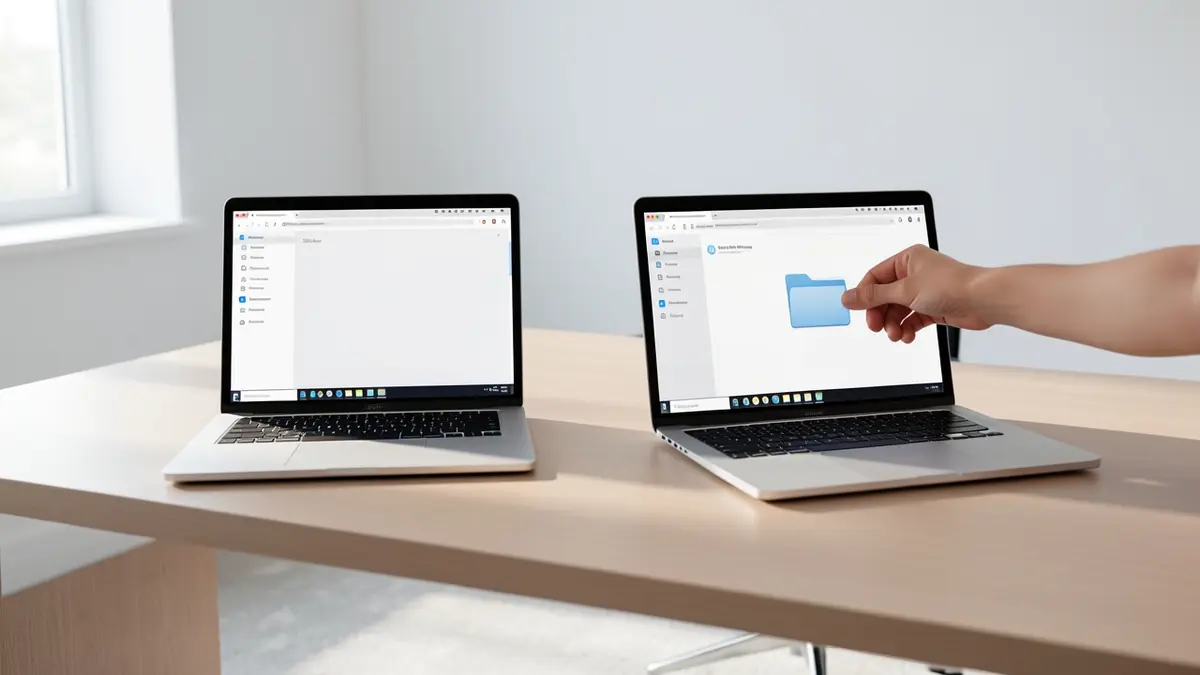

Many users wonder whether Windows apps from the Microsoft Store are safer than those downloaded elsewhere and how updates are delivered.
The short answer: Store apps are vetted, sandboxed, and updated automatically, giving both users and developers a reliable, secure experience.
How the Microsoft Store verifies app authenticity
Digital signatures and the submission pipeline
Every package that reaches the Microsoft Store must be signed with a certificate that Microsoft trusts. The signing process begins on the developer’s machine, where the compiled binary is wrapped in an .appx or .msix container and then signed with a code‑signing certificate issued by a recognized Certificate Authority. When the package is uploaded to the Store, the Store’s ingestion service checks the signature against the certificate chain, ensuring the publisher’s identity has not been altered.
After the signature passes, the Store runs an automated certification suite. This suite validates that the app conforms to platform policies, does not contain prohibited APIs, and respects the declared capabilities. The result is a certification badge that appears on the Store listing, signalling to users that the app has been vetted by Microsoft’s security pipeline.
Example: Carpathron Remote
Carpathron Remote, the remote‑desktop client for Windows, is distributed through the Microsoft Store at https://apps.microsoft.com/detail/9NLWQS658XWX. Before it appeared there, the development team signed the .msix package with a corporate certificate and submitted it to the Store. The certification process verified the app’s use of the Remote Desktop Protocol, confirmed that the optional AI technician feature only activates after explicit user consent, and checked that the built‑in SSH terminal respects the saved‑connection list without exposing credentials.
Because Carpathron Remote meets all certification criteria, the Store displays the “Microsoft Certified” badge, and users can install the app with confidence that the binary has not been tampered with since signing.
Example: Carpathron Studio
Carpathron Studio, a Windows‑only creative suite, follows the same workflow. The developers package the software, sign it, and upload it to the Store. During certification, Microsoft scans the installer for known vulnerabilities, ensures that any third‑party libraries are properly licensed, and validates that the application declares only the permissions it truly needs (e.g., file system access for project files). Once cleared, the Store lists Carpathron Studio with the same trust indicators as Carpathron Remote.
Both applications illustrate how the Store’s signature verification and certification steps create a chain of trust: from the developer’s certificate, through Microsoft’s automated checks, to the end‑user’s device.
Internal links for further reading
For a deeper look at how Qubitpage packages its Windows offerings, see the Carpathron Remote product page. Additional technical details about the certification requirements are available on the software overview page.
Sandboxing and permission controls for safer execution
Isolation through the Windows app container
The Microsoft Store requires each app to run inside an app container, a lightweight sandbox that separates the app’s processes from the rest of the operating system. The container enforces a strict boundary: file system access is limited to the app’s own data folder, registry keys are virtualised, and network sockets are filtered according to the declared capabilities. Because the container cannot directly modify system files or inject code into other processes, malicious behaviour is confined to the sandbox and cannot affect the host.
When a user installs an app from the Store, the package manifest lists the capabilities the app needs, such as internetClient for outbound network traffic or documentsLibrary for file access. During installation, Windows validates these declarations against the app’s signature and presents the user with a concise permission summary. Only after the user consents does the system grant the requested capabilities, and the app runs with those limited privileges.
Dynamic permission prompts and user control
Beyond the static manifest, Windows can surface runtime prompts when an app attempts to access a protected resource that was not pre‑declared. For example, if a remote‑desktop client tries to read a file outside its sandbox, the system displays a dialog asking the user to allow or deny the operation. This on‑demand model prevents silent escalation of privileges and gives the user continuous oversight of what the app is doing.
The sandbox also isolates hardware access. Features such as the microphone or webcam require explicit user permission, and the OS enforces that only the foreground window can activate the device. When the permission is revoked, the app immediately loses access, protecting privacy even if the app remains open.
Real‑world example: Carpathron Remote
Carpathron Remote, available through the Microsoft Store, benefits from the same container model. The app’s manifest declares only the capabilities needed for remote screen sharing, voice calls, and file transfer. Because it runs inside the sandbox, it cannot read arbitrary files on the host PC unless the user initiates a drag‑and‑drop operation, which triggers a permission prompt. The optional AI technician feature also respects the container limits: any AI‑generated command that requires elevated rights must be approved by the person at the remote PC before execution.
This isolation means that even if a compromised remote session attempted to execute malicious code, the code would be confined to the app container and would lack the system‑level privileges required to alter the host operating system.
Tip: After installing a new Store app, open Carpathon Remote and review its listed capabilities in Settings → Privacy. Revoking any unnecessary permission reduces the app’s attack surface without affecting core functionality.
Automatic update flow for Microsoft Store apps
When a developer publishes a new version of an app, the Microsoft Store handles distribution without requiring any action from the end‑user. The process begins in the developer portal, where the package is uploaded and a release schedule is defined. After the package passes Microsoft’s certification, the Store queues it for rollout to all registered devices.
On the client side, Windows checks for updates in the background several times a day. If a newer version is available, the system downloads the package silently, verifies the signature, and installs it during the next idle period or when the user restarts the app. Users see a brief notification that the app has been updated, but they never need to locate a download link or run an installer.
Carpathron Remote illustrates this flow in a real‑world setting. The remote‑desktop client is listed in the Microsoft Store (Carpathron Remote) and receives regular improvements such as UI tweaks, performance patches, and new AI‑technician integration. Each release follows the same automated pipeline, ensuring that every Windows PC running the app gets the latest features without manual intervention.
Step‑by‑step update procedure
- Package preparation. The developer builds a new AppX package, signs it with a trusted certificate, and uploads it to the Microsoft Store developer portal.
- Certification. Microsoft runs automated tests for security, compliance, and compatibility. Once the package passes, it is marked as “Ready for release.”
- Release scheduling. The developer selects an immediate rollout or defines a phased schedule (e.g., 25 % of users first, then the remainder). This option lets developers control exposure to potential issues.
- Store propagation. The Store replicates the package to its global CDN nodes. Devices query the nearest node, ensuring fast, low‑latency downloads.
- Client discovery. Windows Update Service checks the Store metadata every few hours. When it detects a newer version for an installed app, it flags the app for download.
- Silent download. The system retrieves the package in the background, validates the digital signature, and stores it in a temporary location.
- Installation. During the next idle window or when the user launches the app, Windows applies the update. If the app is running, the system may prompt the user to restart to complete installation.
- Post‑install verification. After installation, the Store logs the update status and reports it back to the developer portal, where metrics such as adoption rate become visible.
Developers can monitor the rollout through the Store dashboard, which shows download counts, crash reports, and user feedback. If a critical issue is discovered, the developer can pause the rollout or submit a hot‑fix that follows the same automated path.
Because the entire chain is managed by the Store, users of Carpathron Remote enjoy continuous improvements—like the addition of voice calls or the optional AI technician—without ever leaving the app or navigating to an external website.
Benefits for developers publishing on the Store
Reduced distribution overhead
When a developer uploads a package to the Microsoft Store, the platform handles hosting, download bandwidth, and regional mirrors automatically. This eliminates the need to maintain separate servers or CDN contracts. For example, a small studio can publish the Windows version of Carpathron Studio without provisioning a dedicated file‑hosting service, relying on the Store’s global infrastructure to deliver the installer to users worldwide.
The Store also manages certificate signing and app‑manifest validation, so developers do not have to embed their own code‑signing keys or run manual integrity checks. The result is a faster time‑to‑market and lower operational cost.
Built‑in licensing and payment processing
Microsoft’s licensing framework records each purchase, renewal, and refund directly in the developer’s dashboard. Developers can set up subscription tiers, one‑time licences, or free trials, and the Store will enforce the limits. Carpathron Remote, for instance, offers a free personal tier with session caps, a Pro subscription at €3 per month, and a Max plan at €5 per month; all of these pricing options are defined on the Carpathron Remote pricing page and processed by Microsoft without additional code.
Because the Store handles payment gateways, developers avoid integrating PayPal, Stripe, or other merchant services themselves. Revenue is paid out on a regular schedule, and the Store supplies tax‑compliant receipts for each transaction.
Access to Microsoft analytics
The Store provides detailed telemetry on installs, active devices, crash reports, and user ratings. Developers can filter data by geography, OS version, or device type, which helps prioritize bug fixes and feature requests. Carpathron Studio’s developers can view how many Windows users have enabled the app’s optional AI technician feature, then adjust documentation or pricing accordingly.
Analytics are presented in a secure portal, and the data can be exported for deeper analysis in external tools. This built‑in insight removes the need to embed third‑party analytics SDKs that might raise privacy concerns.
Streamlined update cycle
Submitting an update to the Store triggers an automated review that checks for compliance with Microsoft policies. Once approved, the new version is rolled out to all users automatically, respecting the “automatic update flow” described earlier in this article. Developers do not need to maintain separate update servers or write custom patch‑delivery logic.
For Carpathron Remote, a quarterly security patch can be uploaded once, and every licensed user receives the update within minutes, ensuring that the optional AI technician continues to operate with the latest security standards.
Tip: Keep your Store metadata concise and include direct links to your pricing pages (e.g., Carpathron Remote pricing and Carpathron Studio pricing) so users can understand the value proposition before installing.
Comparison of Store vs. direct download distribution
The Microsoft Store provides a curated channel that isolates apps from the underlying system, while self‑hosted installers place the entire responsibility for safety and delivery on the publisher. This distinction shows up clearly when you compare security checks, update cadence, user confidence, and the effort required to keep the software current.
| Aspect | Microsoft Store publishing | Direct download (self‑hosted) |
|---|---|---|
| Security verification | Apps are scanned for malware, signed with a Microsoft certificate, and run in a sandbox that limits file‑system and network access. | Publisher must manage code signing, anti‑malware testing, and any runtime permissions manually. |
| Update speed | Updates are pushed automatically to all devices; the Store handles delta downloads and rollback. | Updates rely on the publisher’s own distribution mechanism – typically a new installer or patch that users must download and run. |
| User trust | Customers see the Store badge, a Microsoft‑verified publisher name, and a consistent install experience. | Trust depends on the website’s reputation, SSL certificates, and visible security cues; phishing risks are higher. |
| Maintenance effort | Microsoft hosts the binaries, tracks versioning, and manages compliance; developers focus on code changes. | Developers must host files, maintain download mirrors, monitor bandwidth, and respond to compatibility issues across Windows versions. |
| Platform integration | Store apps can use Windows App SDK features, receive telemetry through the Store dashboard, and appear in Windows Settings > Apps & features. | Integration is limited to traditional installers; features like automatic uninstallation or per‑user licensing require custom code. |
For teams that already distribute Windows software, the Store reduces the administrative burden of signing and patching. However, if an application needs deep system access or custom installation steps, a self‑hosted installer may still be preferable.
Qubitpage’s Carpathron Remote illustrates the trade‑off. The Windows version is available through the Microsoft Store, benefiting from the sandbox and automatic updates described above. At the same time, the Linux package is delivered as an AppImage and .deb file directly from the download page, where the publisher handles versioning and verification independently.
How Qubitpage ensures a smooth Store experience for users
Pre‑release testing on Windows 10 and 11
Before any Qubitpage app reaches the Microsoft Store, the development team runs a full test matrix on both Windows 10 and Windows 11. The process includes installing the app from the Store package, launching it in a clean user profile, and verifying that all required permissions—such as file system access for drag‑and‑drop transfer—are granted correctly. The team also checks that the optional AI technician feature in Carpathron Remote works only after the remote user approves the admin prompt, confirming that the Store‑delivered binary respects the intended security model.
Automated scripts simulate typical user actions: connecting to a remote PC, starting a voice call, and opening the SSH terminal with a saved connection. Any deviation from the expected behavior triggers a rollback and a new build cycle, ensuring that the final package is stable across the two most common Windows versions.
Certification tools and compliance checks
Qubitpage uses the Microsoft Store certification kit to validate each build. The kit scans the package for prohibited APIs, verifies that the app’s manifest declares only the permissions it actually needs, and runs a sandbox integrity test. For Carpathron Remote, the certification process confirms that the one‑time password system and the view‑only presentation mode operate within the sandbox without leaking data to other processes.
After the automated checks, a manual review verifies that the app’s description, screenshots, and support contact (contact@qubitpage.com) match the Store listing. This double‑layer approach reduces the chance of a rejected submission and speeds up the time from build to public availability.
User‑focused support and updates
Once the app is live, Qubitpage monitors the Store’s telemetry for crash reports and performance metrics. If an issue appears, the team prepares a hotfix, re‑runs the certification steps, and pushes an update through the Store’s automatic delivery channel. Users receive the update without leaving the Store interface, and the process is transparent to them.
For any questions that arise after installation—such as configuring the AI technician key or troubleshooting a voice call—users can reach the support team directly at contact@qubitpage.com. The support staff, led by founder Mircea S. Rusu, leverages his long‑standing experience with Windows environments to provide quick, technical assistance.
Direct links to Qubitpage products in the Store
Both the remote desktop solution and the optional studio tools are listed in the Store with clear navigation paths. Users can find Carpathron Remote at /remote and explore the related studio offering at /software/carpathron-studio. These links guide users from the Store page to the product’s detailed information, ensuring a seamless transition from discovery to download.
By combining rigorous testing, compliance with Microsoft’s certification tools, and responsive support, Qubitpage guarantees that its Store apps remain safe, reliable, and easy to keep up to date.
Frequently asked questions
Is a Microsoft Store app automatically safer than a downloaded .exe?
Microsoft Store apps are packaged and signed by Microsoft, which verifies the publisher’s identity before allowing distribution. This process reduces the risk of tampered binaries, but safety also depends on the developer’s own security practices. Users should still evaluate the reputation of the app and keep their system updated.
How often does the Store push updates to installed apps?
The Store checks for updates at regular intervals, typically several times a day, and applies them automatically when a connection is available. Developers can also trigger a manual update from the Store interface. The exact cadence may vary based on network conditions and Windows update settings.
Can I still use my own license key with a Store version of Carpathron Remote?
Carpathron Remote obtained from the Microsoft Store follows the same licensing model as the direct download. Users receive a licence key by email after purchase, which can be entered in the app’s activation dialog. The Store version does not replace the need for a valid key; it simply provides a convenient installation path.
What happens if an update causes a problem – can I roll back?
Windows keeps a copy of the previous version of a Store app for a limited time. If an update introduces issues, the user can open the Store, select “Uninstall” and then reinstall the app, which restores the last stable version available in the Store catalogue. For critical failures, contacting Qubitpage support at contact@qubitpage.com is recommended.
Do I need a Microsoft developer account to install Store apps on Windows 10?
No, a Microsoft developer account is required only for publishing apps to the Store. End users can install Store apps with a standard Microsoft account or even as a local user if the device is configured to allow Store access. The installation process is the same as downloading any other app from the Store.
Wrapping up the safety and update advantages
Installing a remote‑desktop client from the Microsoft Store means the package has passed Microsoft’s certification checks, runs in a sandboxed environment, and receives signed updates automatically. This reduces the risk of tampered binaries and ensures that security patches are applied as soon as they are released, without requiring manual download or admin intervention.
For Windows users who need a reliable way to control their own PCs or assist others, the Carpathron Remote app leverages these Store benefits while offering features such as one‑time passwords, chat, voice calls, and drag‑and‑drop file transfer. Keep the app up to date by enabling automatic updates in the Store settings, and verify the publisher name “Qubitpage®” before connecting to a remote session.
By following these steps you can maintain a secure remote‑desktop workflow and stay protected against common attack vectors. Ready to try a vetted solution? Explore Carpathron Remote on the Qubitpage site and start a safe remote session today.