Teachers and presenters often need to show their screen without letting the audience take control, especially during live demos or lessons.
Carpathron Remote provides a built‑in view‑only presentation mode that lets you share your desktop safely and efficiently.
What is view‑only screen sharing and why use it?
Defining view‑only screen sharing
View‑only screen sharing lets a presenter broadcast the contents of their desktop while preventing the remote participant from interacting with the mouse or keyboard. The audience can see every cursor movement, window switch, and application launch, but any input attempts are blocked or ignored. This mode differs from full‑control sessions, where the remote user can manipulate the host machine as if they were sitting in front of it.
Benefits for education and product demos
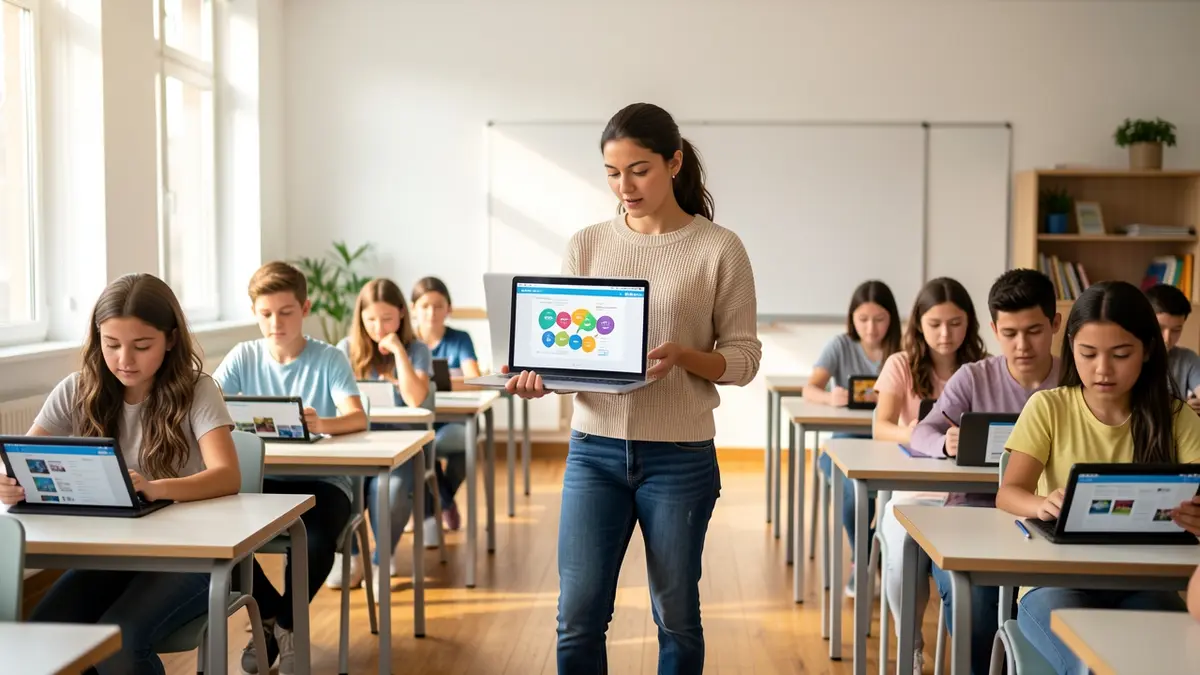
In a classroom, a teacher can display a live software tutorial without risking accidental clicks that would disrupt the flow. Students focus on the visual explanation, and the instructor retains full control over the pace and sequence of the lesson. For product demonstrations, sales engineers can showcase a UI or workflow while ensuring the client cannot alter settings or trigger unintended actions, preserving a clean, repeatable demo environment.
View‑only mode also enhances security during support calls. When a technician needs to observe a problem on a user’s screen, the user can grant a temporary view‑only session, protecting sensitive data from being accessed or modified by the remote side. The presenter retains the ability to end the session instantly, adding an extra layer of privacy.
Carpathron Remote provides built‑in view‑only sharing
Qubitpage’s Carpathron Remote includes a dedicated view‑only presentation mode that works on both Windows and Linux hosts. After establishing a connection with the remote ID and one‑time password, the host can switch to view‑only with a single command, instantly disabling input from the remote side while keeping the video stream active. The feature integrates with the app’s chat and voice channels, so presenters can still answer questions verbally without giving up control of the screen.
Because Carpathron Remote is distributed as a Microsoft Store package for Windows and as an AppImage or .deb for Linux, the view‑only mode is available without additional installations or plug‑ins. Users who need unlimited sessions can upgrade to the Max plan, but the basic view‑only capability is already included in the free personal tier, subject to the standard session limits.
For more details on how to start a remote session, see the product page at Carpathron Remote or the pricing information at Carpathron Remote pricing. The combination of secure, low‑latency streaming and a built‑in view‑only option makes Carpathron Remote a practical choice for teachers, trainers, and demo specialists who want to share their screen safely and efficiently.
How Carpathron Remote implements view‑only mode
Presentation mode for passive viewing
Carpathron Remote includes a dedicated presentation mode that locks the remote session to view‑only. When the host activates this mode, the remote participant can see the screen in real time but cannot move the mouse, type, or trigger any system shortcuts. The host retains full control and can navigate slides, demonstrate software, or walk through a workflow while the audience follows along without the risk of accidental input.
Communication channels stay active
Even in view‑only sessions, Carpathron Remote keeps the chat pane and voice call functionality operational. The presenter can type messages that appear in the chat window, and the remote participant can reply verbally or via text, allowing questions to be answered without breaking the view‑only constraint. This dual‑channel approach is useful for live lessons where the instructor needs to field queries while maintaining a stable display.
File transfer is deliberately disabled
During a view‑only session the drag‑and‑drop file transfer feature is automatically disabled. This prevents the remote side from sending files to the host machine, which could otherwise introduce security concerns or disrupt the demonstration. The presenter can still share files beforehand by sending a link through the chat, but no direct transfer occurs while the session is in view‑only mode.
One‑time password and session limits
To start a view‑only demo, the presenter generates an ID and a one‑time password from the Carpathron Remote interface. The remote participant enters these credentials, and the host selects “view‑only” before the connection is established. For personal‑use licences the session is limited to 20 minutes, with a maximum of two hours per day, which aligns with the free tier described on the pricing page. Paid plans remove these limits and allow unlimited simultaneous view‑only sessions across multiple PCs.
Cross‑platform availability
The remote desktop app runs on Windows and Linux. Windows users can download Carpathron Remote from the Microsoft Store (Microsoft Store link), while Linux users obtain an AppImage or .deb package from the /remote download area. Regardless of the operating system, the presentation mode behaves consistently, ensuring that educators and product demonstrators can rely on the same view‑only experience on any device.
Tip: Before launching a live demo, open the presentation in full‑screen mode on the host PC. This eliminates window borders and system notifications, giving remote viewers a clean, distraction‑free view.
Step‑by‑step setup for view‑only screen sharing
Carpathron Remote lets you turn a regular remote session into a presentation‑only view. The following procedure shows how to start a session, activate the view‑only mode, and control access with an ID and one‑time password.
- Install and launch the app. Download the Windows version from the Microsoft Store or the Linux AppImage/.deb from /remote. Open the program and sign in with your Qubitpage account.
- Create a new session. Click New Session, then choose Presentation mode from the dropdown. This automatically sets the remote connection to view‑only, preventing the remote user from controlling the mouse or keyboard.
- Generate the connection credentials. The app displays a unique session ID and a one‑time password (OTP). Copy both values; they will be shared with the audience.
- Distribute the ID and OTP. Send the credentials via email, chat, or a learning platform. Recipients enter the ID and OTP in their Carpathron Remote client to join the view‑only session.
- Verify participant approval. When a participant connects, the host computer shows a prompt asking to approve the view‑only request. Click Allow to let the remote viewer see the screen without control rights.
- Manage the session. While presenting, you can mute the chat, disable voice calls, or lock the session from the toolbar. Use the End Session button to terminate the sharing when the demo is complete.
- Check usage limits. Personal‑use licences allow sessions up to 20 minutes and a maximum of 2 hours per day. For longer or multiple concurrent presentations, consider upgrading to a Pro or Max licence; details are on the pricing page.
- Optional: Enable AI assistance. If you have an AI key, activate the optional AI technician before starting. The AI can suggest screen annotations, but all admin prompts still require host approval.
After the session ends, the host can review the connection log to see who accessed the view‑only stream. This log helps you verify attendance for lessons or corporate demos.
Best practices for teachers and presenters
Plan session duration within free‑tier limits
Carpathron Remote’s personal tier allows sessions up to 20 minutes each and a total of two hours per day. Schedule lessons in 15‑minute blocks and insert a short pause between blocks to stay inside the limit while giving students a moment to process the material. If a class runs longer, consider splitting it into two separate days or upgrading to the Pro plan, which removes the per‑session restriction.
Prepare the desktop before you share
Close any unrelated applications, notifications, and browser tabs that could distract learners. Arrange the windows you intend to demonstrate in the order you will present them, and lock the screen orientation if you are using a tablet. By presenting a clean desktop, you avoid accidental exposure of personal data and keep the focus on the lesson content.
Leverage view‑only mode for safe interaction
Activate the view‑only presentation mode from the Carpathron Remote control panel before inviting students. In this mode participants can see your screen but cannot move the mouse or type, which prevents accidental interruptions. The remote host retains full control, allowing you to pause, annotate, or switch applications without external interference.
Use chat and voice for questions
While the screen is locked to view‑only, enable the built‑in chat window so students can type questions without breaking the flow of the demo. For more nuanced queries, start a voice call within the same session; the audio channel is separate from the screen sharing and does not affect the view‑only state. Encourage learners to raise a hand emoji in chat before speaking, which helps you manage the discussion efficiently.
Tip: Test the entire workflow on a secondary device before the live lesson. A quick rehearsal reveals any hidden pop‑ups, ensures the AI technician (if used) is ready to approve prompts, and confirms that the session stays within the free tier limits.
Wrap up with a clear exit strategy
When the lesson ends, click the “End Session” button to terminate the connection for all participants. This prevents lingering access and immediately frees up your licence for the next class. Send a follow‑up email with a link to the Carpathron Remote download page for students who may need the client for future sessions, and remind them of the two‑hour daily limit if they plan to host their own demos.
Feature comparison: view‑only vs full control modes
Both view‑only presentation mode and full‑control remote sessions are built into Carpathron Remote, but they serve distinct interaction patterns. Understanding the differences helps you choose the right mode for demos, lessons, or support calls.
| Aspect | View‑only presentation mode | Full‑control remote session |
|---|---|---|
| Permissions | Remote user can only see the screen; mouse and keyboard input are disabled. | Remote user can move the cursor, type, and execute commands on the host PC. |
| Security | No admin prompts are generated; the host cannot be altered, reducing risk of accidental changes. | Admin prompts appear for actions that require elevation; the host must approve each prompt. |
| Interaction options | Chat and voice calls remain available; drag‑and‑drop file transfer works in read‑only mode. | All Carpathron Remote features are active, including file transfer, SSH terminal, and AI technician assistance. |
| Typical use cases | Live software demos, classroom lectures, product walkthroughs where the presenter wants to retain full control of the environment. | Technical support, collaborative troubleshooting, or co‑editing sessions where the remote participant needs to manipulate the host system. |
| Session limits (personal licence) | Subject to the same 20‑minute session cap and 2‑hour daily limit as any personal use session. | Identical limits apply; upgrading to Pro or Max removes the time restriction for both modes. |
| Audio/Video integration | Voice call can be used to narrate the demo while participants watch the screen. | Voice call can accompany interactive guidance, allowing the remote user to ask questions while manipulating the interface. |
When the goal is to showcase a workflow without exposing the host to unintended input, view‑only mode offers a safer, distraction‑free experience. Conversely, full‑control sessions empower collaborators to resolve issues in real time, leveraging the same chat, voice, and file‑transfer tools.
Choosing the appropriate mode is a matter of balancing control and interactivity. For a classroom setting, start the session in view‑only mode, then switch to full control if a student needs hands‑on practice. In a support scenario, begin with full control to diagnose the problem, then switch to view‑only to demonstrate the fix while the user watches.
Integrating view‑only sharing with other Qubitpage tools
View‑only screen sharing works best when it is part of a broader workflow. By pairing Carpathron Remote’s presentation mode with other Qubitpage utilities, you can create polished demos, interactive lessons, and collaborative sessions without handing over full control.
Coupling view‑only mode with Carpathron Studio for video demonstrations
Carpathron Studio provides a dedicated environment for recording and editing video tutorials. Start a recording session in Studio, then open Carpathron Remote on the same machine and enable the view‑only presentation mode. The remote viewer sees the Studio interface in real time, while the presenter retains the ability to edit the timeline, add annotations, or switch scenes without interruption. Because the remote side cannot interact with the mouse or keyboard, the demo remains stable even if the audience asks questions via the built‑in chat.
Using the AI‑enhanced SSH terminal for live coding lessons
The Remote application includes an SSH terminal with saved connections and optional AI assistance. For a live coding lesson, configure the terminal to connect to a development server, then enable view‑only mode before the session begins. Students watch the terminal output and code changes in real time, while the instructor retains full command‑line control. If the AI technician is enabled, the instructor can ask the AI for code snippets or debugging tips without leaving the terminal, and the AI’s suggestions appear only on the presenter’s screen.
Set up the terminal by adding the server address in the Remote settings, then save the connection. When the class starts, share the remote ID, choose the one‑time password, and switch to view‑only mode. The AI key can be provided through the same “bring your own AI key” option, ensuring that any AI‑generated commands still require the remote PC user’s approval.
Combining chat, voice, and file transfer during a view‑only session
Even in view‑only mode, Remote’s chat and voice features remain active. Use the chat window to field questions, and switch to a voice call for more detailed explanations. If you need to demonstrate a file‑based workflow—such as opening a configuration file in Studio—drag the file into the Remote window; the file appears on the presenter’s machine, and the audience can see the result instantly.
Because receiving connections never requires a licence, you can invite an unlimited number of participants to watch the demo while you keep the session under the limits of your personal‑use plan (20‑minute sessions, up to 2 hours per day). For longer workshops, consider the Pro or Max subscription to remove time caps and control multiple PCs.
Workflow checklist
- Prepare the Studio project or SSH connection before the session.
- Generate the Remote ID and one‑time password.
- Enable “Presentation mode” (view‑only) in Remote.
- Activate chat or voice if interaction is needed.
- Use drag‑and‑drop file transfer for any supporting assets.
- Close the session and review any AI suggestions for future improvements.
By integrating view‑only sharing with Carpathron Studio and the AI‑enhanced terminal, educators and presenters can deliver controlled, high‑quality content while still benefiting from Remote’s collaborative tools. For more details on Remote’s pricing and licensing, visit the Carpathron Remote page.
Frequently asked questions
How do I enable view‑only mode in Carpathron Remote?
Start a remote session and open the session toolbar. From the toolbar select the Presentation mode button, which switches the connection to view‑only. The remote PC will display a prompt asking the host to confirm the change, and once approved the viewer can see the screen without control privileges.
Can I share files while in view‑only presentation mode?
File transfer is tied to the control side of the session. When the connection is in view‑only mode, the drag‑and‑drop area is disabled, so you cannot send or receive files until you exit presentation mode. To share files you must temporarily switch back to a normal remote control session, perform the transfer, and then return to view‑only if needed.
What are the limits of the free personal licence for screen sharing?
The free personal licence allows sessions of up to 20 minutes each, with a maximum of two hours of total usage per day. Receiving a connection does not require a licence, so you can host unlimited view‑only presentations as a viewer. If you need longer or continuous sessions, upgrading to the Pro or Max plan removes these time restrictions.
Is the viewer able to see my SSH terminal when I share the screen?
When you open the built‑in SSH terminal during a remote session, its window is part of the desktop that is streamed. In view‑only mode the viewer will see everything displayed on the screen, including the SSH terminal window, but they cannot interact with the terminal commands. To keep the terminal private you must close the window or switch to a separate, non‑shared monitor.
Can I use view‑only sharing on both Windows and Linux PCs?
Carpathron Remote provides the same presentation mode on both Windows and Linux clients. After installing the Windows version from the Microsoft Store or the Linux version from the AppImage or .deb package, you can start a session and activate view‑only mode using the same toolbar button. The feature works identically across the two operating systems, allowing seamless demos from either platform.
Wrap‑up and next steps
Using Carpathron Remote’s view‑only presentation mode lets you share a screen without risking accidental input, making it ideal for live demos, classroom lessons, and client briefings. Start by generating an ID and one‑time password, then select the view‑only option before the remote party connects. Keep the chat window open for questions and use the built‑in voice call if you need to explain complex steps verbally. For recurring sessions, save the SSH connections you need for quick access to servers or development environments, and consider adding the optional AI technician to automate routine admin prompts while you focus on the content.
After each session, review the transferred files list to ensure any shared assets are stored securely, and adjust the session time limits if you are on the free tier and need longer demos. When you feel ready to scale up to multiple simultaneous presentations, the Pro or Max plans remove the 20‑minute cap and let you control several PCs from a single dashboard. Explore Carpathron Remote to set up your first view‑only demo today.