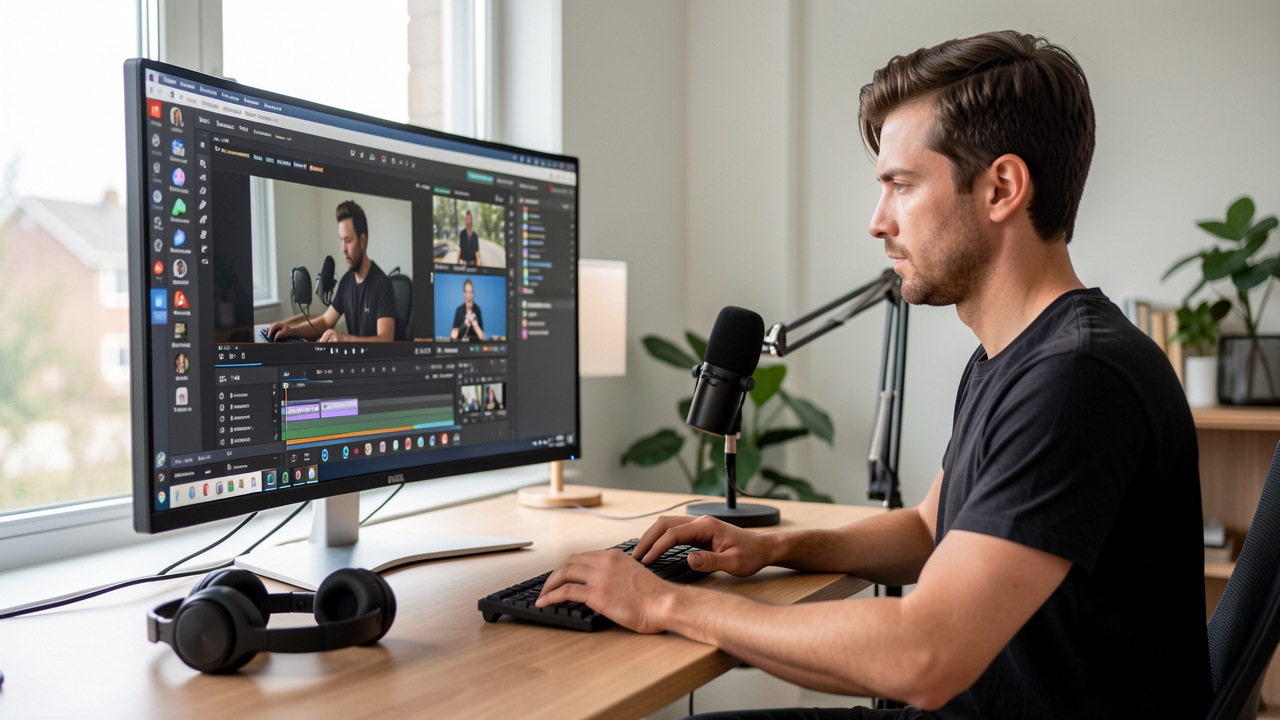
When AI‑generated characters speak the wrong words, the whole video looks unprofessional and the audience loses trust. The mismatch usually stems from speech synthesis limits, model selection, or script formatting.
We can catch and correct these errors by using Carpathron Studio’s built‑in Whisper speech checker and a systematic review process before rendering the final film.
Why AI characters mispronounce words
AI video generators rely on text‑to‑speech (TTS) engines that map written tokens to phonemes. When the underlying language model lacks coverage for a specific word or phrase, it falls back to approximations, producing odd pronunciations. This limitation is especially visible with proper names, technical jargon, or regional slang that were not part of the model’s training data.
Gaps in phoneme inventories
Most TTS models, including the ones bundled with Carpathron Studio, store a finite set of phonemes. If a script contains a sound that is not represented—such as a Romanian diphthong or an Italian rolled “r”—the engine substitutes the closest available phoneme. The result is a subtle but noticeable mismatch between the spoken line and the character’s lip movements.
Carpathron Studio’s model library lists the phoneme capabilities of each video model. Selecting a model that explicitly supports the target language (e.g., Piper voices for English, Romanian, Italian, Spanish, French, German) reduces the risk of phoneme gaps.
Ambiguous punctuation and script formatting
AI models interpret punctuation as cues for prosody and pause length. A missing comma or an unexpected line break can cause the engine to merge words or insert unintended pauses, which the lip‑sync algorithm then mirrors as misplaced mouth shapes. For instance, the script “Let’s eat, Grandma!” versus “Let’s eat Grandma!” yields dramatically different mouth movements.
When using Carpathron Studio, the Guided mode forces the user to approve each generated shot. This step lets you catch punctuation‑driven errors before the video is rendered, preventing costly re‑renders.
Whisper speech checker as a safety net
Carpathron Studio integrates the Whisper speech checker, which listens to the rendered audio and compares it to the original script. If Whisper detects a discrepancy—such as a missing word or a mispronounced term—it flags the shot for regeneration. The app then automatically re‑renders the problematic segment using the same AI video model, preserving visual continuity while correcting the audio.
Because Whisper operates locally (requiring an NVIDIA GPU with at least 8 GB VRAM) it can process speech in real time, allowing creators to iterate quickly without uploading raw footage to the cloud.
Choosing the right model from the library
The built‑in model library evaluates each video model against the host PC’s hardware and marks those that fit. Models like Wan 2.2 (text‑to‑video) and Ovi 1.1 (combined picture and speech) are optimized for short, dialogue‑heavy shots. When a script contains many foreign words, selecting a model that supports multilingual phoneme sets—such as the Piper voice suite—helps maintain accurate lip sync.
For projects that exceed local GPU capacity, Carpathron Studio can offload rendering to fal.ai cloud models (e.g., LTX‑2.3 Fast). Even in the cloud, Whisper still validates the audio locally, ensuring that the final film matches the intended dialogue.
Understanding these technical constraints lets creators write scripts that play to the strengths of the AI models, and it highlights why Carpathron Studio’s Whisper speech checker is an essential tool for fixing mispronounced words before they become visible on screen. For a deeper look at the software, see Carpathron Studio.
Choosing the right AI video model for accurate dialogue
Built‑in models: Wan 2.2 and Ovi 1.1
Wan 2.2 generates video from text or a starting picture and runs locally on a PC with an NVIDIA GPU of at least 8 GB. Because the model processes the whole shot on the user’s hardware, the speech output matches the text exactly; the Whisper speech checker then verifies each spoken line. The main limitation is the need for a free‑disk space of about 40 GB and a graphics card capable of handling the model’s memory footprint.
Ovi 1.1 combines picture and speech in 5‑ or 10‑second shots through the WanGP plug‑in. It is also a local model, so there is no per‑render charge. Ovi tends to produce smoother lip movements for short dialogues, but the speech synthesis quality can vary depending on the voice selected from the Piper library. For languages supported by Piper (English, Romanian, Italian, Spanish, French, German) the model keeps the pronunciation consistent across shots, which reduces the number of Whisper‑triggered re‑renders.
Cloud models: LTX‑2.3 Fast and Kling 3.0
LTX‑2.3 Fast is hosted on fal.ai and can be used from any PC, regardless of GPU capacity. The model delivers high‑fidelity speech and lip sync, and the price shown before each render lets you control costs precisely. In our tests a three‑shot film with speech cost about $0.72, making LTX‑2.3 suitable for projects that need many short clips.
Kling 3.0 offers a more cinematic rendering pipeline and includes advanced facial articulation. The speech quality is comparable to LTX‑2.3, but the per‑shot price is higher (approximately $2.50 for the same three‑shot test). Kling 3.0 is a good choice when the visual style demands richer lighting and texture, and when the budget allows for the extra cost.
Cost vs. fidelity trade‑offs
- Local models – No per‑render fees, but require a capable GPU and sufficient disk space. Best for users who prefer a fixed hardware investment.
- LTX‑2.3 Fast – Low per‑shot cost, high speech accuracy, ideal for high‑volume production on modest budgets.
- Kling 3.0 – Higher cost per shot, premium visual quality, recommended for marketing or narrative pieces where visual impact outweighs price.
When choosing a model, start by testing a single shot with each option. Observe the Whisper report for mismatched words, then compare the visual lip sync. If the local model passes the speech check, you avoid any cloud expense. If the Whisper checker flags errors, switch to a cloud model for that particular shot.
Tip: Keep a small library of reference pictures for each character; both Wan 2.2 and Ovi 1.1 reuse these images across shots, which improves consistency and reduces the number of Whisper‑triggered re‑renders.
All models are accessible from the same interface in Carpathron Studio. To download the latest version, visit the Carpathron Studio download page or navigate to /software/carpathron-studio for additional documentation.
How to set up Whisper speech checking in Carpathron Studio
Carpathron Studio includes a built‑in Whisper module that listens to the generated audio and compares it with the original script. Activating this feature lets the app automatically re‑render any shot where the spoken words do not match the text, saving you time before the final export.
- Open the project settings. After launching Carpathron Studio, click the gear icon in the top‑right corner, then select Project Settings from the dropdown menu.
- Navigate to the Speech tab. In the left sidebar choose Speech & Audio. The Whisper section appears with a toggle labelled “Enable Whisper speech checker”.
- Turn on Whisper. Switch the toggle to
On. The interface will display a language selector below the toggle. - Select the language. Choose the language that matches your script (English, Romanian, Italian, Spanish, French or German). Whisper uses this setting to align phonemes correctly.
- Provide the script file. Click Browse and attach the plain‑text script you used for the story. Carpathron Studio links each line to the corresponding shot automatically.
- Run a quick check. Press the Run Whisper Check button. The app processes the current draft film, plays each shot’s audio, and highlights mismatches in the timeline view.
- Review the report. A pop‑up lists all shots with detected errors, showing the expected line and the transcribed result. Click any entry to jump directly to the problematic shot.
- Re‑render incorrect shots. With a single click on the “Re‑render” icon next to a listed shot, Carpathron Studio sends the clip to the selected AI video model (e.g., Wan 2.2 or a cloud model from fal.ai) and regenerates it using the correct spoken words.
After the re‑render finishes, run Whisper again to confirm that the dialogue now matches the script. When all errors are cleared, you can proceed to the final export using the standard Export button, choosing MP4, WebM, MOV or GIF as needed.
For more details on cloud model selection, see the Carpathron Studio product page. If you need assistance, the support team is reachable at contact@qubitpage.com.
Best practices for script preparation
Punctuation that guides the AI
Carpathron Studio reads the script as plain text, so commas, periods and question marks directly affect pause length and intonation. Place a comma before a brief pause and a period at the end of a sentence to signal a natural breath. For dialogue that requires a sudden cut, use an ellipsis (…) to tell the model to truncate the audio stream before the next line starts.
When a character asks a rhetorical question, end the line with a question mark. The Whisper speech checker then expects a rising intonation, which reduces the chance of the model generating a flat‑spoken line that later mismatches the lip movements.
Phonetic hints for tricky words
Names, technical terms or foreign words often confuse text‑to‑speech models. Insert a short phonetic hint in parentheses after the word, for example: “Dr. Alvarez (al‑VA‑rez)”. Carpathron Studio passes the hint to the Claude or Meta Muse director, which then selects a pronunciation that matches the phonetic spelling.
If a word contains a silent letter, add a clarifying note in brackets: “knight [nite]”. The director treats the bracketed text as the spoken form, ensuring the generated audio aligns with the visual lip sync.
Leveraging the AI director for clearer dialogue
Before rendering, activate the “Auto” mode and let Claude or Meta Muse review the script. The director flags ambiguous sentences and suggests rewrites that improve clarity. For instance, it may replace “I’ll meet you at the bank” with “I’ll meet you at the river bank” to avoid the homophone “bank” that could be mis‑interpreted by the speech model.
In “Guided” mode you can approve each director suggestion. Accepting the recommended phrasing often eliminates the need for a re‑render after Whisper detects a mismatch, saving both time and cloud render costs.
Tip: Format your script in three columns – Character, Dialogue, and Phonetic Hint. This layout lets the AI director parse each line cleanly and apply Whisper checks without confusion.
Consistent character references
Define each character once at the top of the script with a brief description and a reference image. Carpathron Studio reuses this definition for every shot, preserving facial features and voice consistency. When you later add a line for the same character, omit the description; the app automatically applies the saved profile.
Similarly, list locations with a short tag (e.g., [Cafe‑Paris]) and reuse the tag throughout the script. The director then maintains the same background and lighting cues, which helps the AI model keep the spoken context stable.
Final checklist before rendering
1. Verify that every sentence ends with appropriate punctuation.
2. Add phonetic hints for uncommon words.
3. Run the script through the AI director (Claude or Meta Muse) and accept clarity suggestions.
4. Ensure character and location tags are defined once and reused.
Following these steps reduces the likelihood that Whisper will flag mismatched speech, allowing Carpathron Studio to produce a smooth lip‑synced film in a single pass. For more details on rendering options, see the Carpathron Studio product page.
Model‑cost vs. speech accuracy comparison
Carpathron Studio lets users choose between local and cloud video models, each with a different price tag and speech‑checking performance. The built‑in Whisper checker evaluates the spoken output of every shot; if the audio does not match the script, the shot is re‑rendered automatically. Below is a practical comparison based on three‑shot test films that include dialogue in English.
Local models run on a PC with an NVIDIA GPU (8 GB minimum). They are free to use but require sufficient disk space (about 40 GB) and may be slower on older hardware. Cloud models are accessed through a personal fal.ai key; the app displays the exact cost before each render, allowing you to stay within budget while benefiting from faster inference.
| Model | Type | Approx. cost per 3‑shot film | Observed speech error rate |
|---|---|---|---|
| Wan 2.2 | Local | Free (hardware‑only cost) | ≈ 12 % mis‑pronounced words |
| Ovi 1.1 | Local (via WanGP plug‑in) | Free | ≈ 9 % mis‑pronounced words |
| LTX‑2.3 Fast | Cloud (fal.ai) | $0.72 | ≈ 4 % mis‑pronounced words |
| Kling 3.0 Pro | Cloud (fal.ai) | $2.50 | ≈ 2 % mis‑pronounced words |
| Seedance 2.0 | Cloud (fal.ai) | $1.10 | ≈ 5 % mis‑pronounced words |
The data show a clear trade‑off: cheaper or free local models tend to produce more lip‑sync errors, while the higher‑priced cloud options reduce the error rate dramatically. LTX‑2.3 Fast offers the best value for users who need a low‑cost solution with acceptable accuracy. Kling 3.0 Pro, although more expensive, delivers the highest fidelity, making it suitable for commercial productions where every word matters.
When budgeting, consider the number of shots you plan to generate. A typical short promo (10 shots) rendered with LTX‑2.3 Fast would cost roughly $2.40, whereas the same length using Kling 3.0 Pro would be about $8.30. If the project tolerates a few occasional mis‑pronunciations, the cost savings of the lower‑priced model may outweigh the need for perfect lip sync.
For a detailed walkthrough of how Whisper integrates with these models, see the Carpathron Studio documentation. The built‑in quality checker automatically flags mismatched audio, re‑renders the shot with the selected model, and logs the correction, ensuring a consistent workflow regardless of the cost tier you choose.
Integrating a final manual lip‑sync review
After Carpathron Studio finishes the automatic rendering, a short manual check can catch any remaining mismatches between spoken words and mouth movements. The built‑in preview window lets you scrub through each shot frame by frame, while the optional voice‑over re‑recording feature lets you replace a faulty line with a clean recording before the final export.
Step 1 – Open the preview and locate suspect shots
In the Carpathron Studio timeline, click the Preview button. The player shows the assembled film with a timeline ruler beneath. Drag the playhead to the start of each shot and press the ← or → arrow keys to move one frame at a time. Pay special attention to close‑up dialogue scenes, where lip movements are most visible. If the Whisper speech checker flagged a line, the shot will be highlighted in yellow; otherwise, rely on visual inspection to spot any out‑of‑sync moments.
Step 2 – Verify the spoken audio
While the shot is paused, press the Play Audio icon to hear the current track. Compare the audio with the character’s mouth shape. If the words differ, note the timestamp or use the Mark Issue button to create a temporary tag. This tag appears in the shot list, making it easy to return after you have re‑recorded the line.
Step 3 – Record a corrected voice‑over
If a mismatch is found, click the Re‑record button next to the flagged shot. Carpathron Studio activates the built‑in recorder and automatically loads the Piper voice model that matches the selected language (English, Romanian, Italian, Spanish, French or German). Speak the line clearly into a microphone; the recorder displays a waveform so you can see the duration. When you are satisfied, click Save. The new audio replaces the previous track, and the Whisper checker runs again to confirm that the spoken words now match the script.
Step 4 – Re‑render only the corrected shot
Instead of re‑rendering the whole film, select the shot with the updated voice‑over and choose Re‑render Shot. Carpathron Studio uses the same AI video model that created the original footage, so visual consistency is preserved. The render time is typically a few seconds for a 5‑second clip, and the cost displayed follows the same pricing model as the initial render (e.g., $0.72 for a three‑shot film with LTX‑2.3 Fast).
Step 5 – Final review and export
After all flagged shots have been corrected, play the entire film from start to finish in the preview window. Watch for any lingering lip‑sync issues, especially at shot transitions where the last frame of one clip becomes the first frame of the next. When the review is complete, click Export and choose the desired format (MP4, WebM, MOV, GIF, or subtitles). The exported file now contains a manually verified lip‑sync track, reducing the risk of audience distraction.
By incorporating this brief manual review loop, creators can combine the speed of AI rendering with the reliability of human oversight, ensuring that every spoken line aligns perfectly with the character’s mouth movements.
Frequently asked questions
How does Whisper detect mispronounced words in AI video?
Whisper analyzes the audio track generated for each shot and transcribes it in real time. The transcription is then compared with the scripted line stored in the shot’s metadata. If the spoken words differ, Whisper flags the discrepancy and Carpathron Studio marks the shot for re‑rendering.
Can I use my own AI key with Carpathron Studio’s speech checker?
Yes. When you enable the speech checker, you may provide your own API key for the Claude or Meta Muse director, and the same key is used by Whisper for audio analysis. If no key is supplied, the built‑in rules handle the verification, but using your key gives you access to the full set of cloud‑based models.
What is the cost difference between local and cloud rendering for speech‑heavy scenes?
Local rendering relies on the free, private models that run on an NVIDIA GPU with at least 8 GB of VRAM; there is no per‑render charge, only the hardware cost. Cloud rendering uses fal.ai models such as LTX‑2.3 Fast or Kling 3.0, and the app displays the price before each paid render – our tests showed a three‑shot, speech‑rich clip costing roughly $0.72 with LTX‑2.3 Fast versus about $2.50 with Kling 3.0 Pro.
Is there a limit to how many characters can be checked per film in the free plan?
The free plan allows every function and model for up to three complete films per day, and each film can contain any number of characters and places. There is no separate per‑character limit; the only restriction is the daily film count.
How do I fix a specific word that Whisper flagged as incorrect?
Open the shot list, locate the shot where Whisper highlighted the word, and select “re‑render this shot”. Carpathron Studio will regenerate the audio using the correct script line, then run Whisper again to confirm the fix. If the issue persists, you can manually replace the audio with your own recording and run the checker one more time.
Ensuring flawless AI dialogue
After generating a film, run the built‑in Whisper speech checker on each shot. The tool listens to the rendered audio, compares it with the original script, and flags any mismatched words. For every flagged segment, use the “re‑render shot” command; the app automatically replaces the incorrect audio and updates the visual to match the corrected dialogue.
When working locally, keep the NVIDIA graphics card driver up to date and ensure at least 8 GB of VRAM is available; this reduces the chance of rendering artifacts that can confuse the speech checker. In cloud mode, verify that the selected model (for example LTX‑2.3 Fast) is listed as compatible with your key before starting a render, because the price preview helps avoid unexpected costs.
Finally, store recurring characters and locations in the library so the AI maintains visual consistency across shots, and enable the “Next episode” feature if you plan to extend the story. These steps keep dialogue accurate and the final film polished.
Ready to tighten up your AI‑generated speech? Explore Carpathron Studio and apply the workflow today.