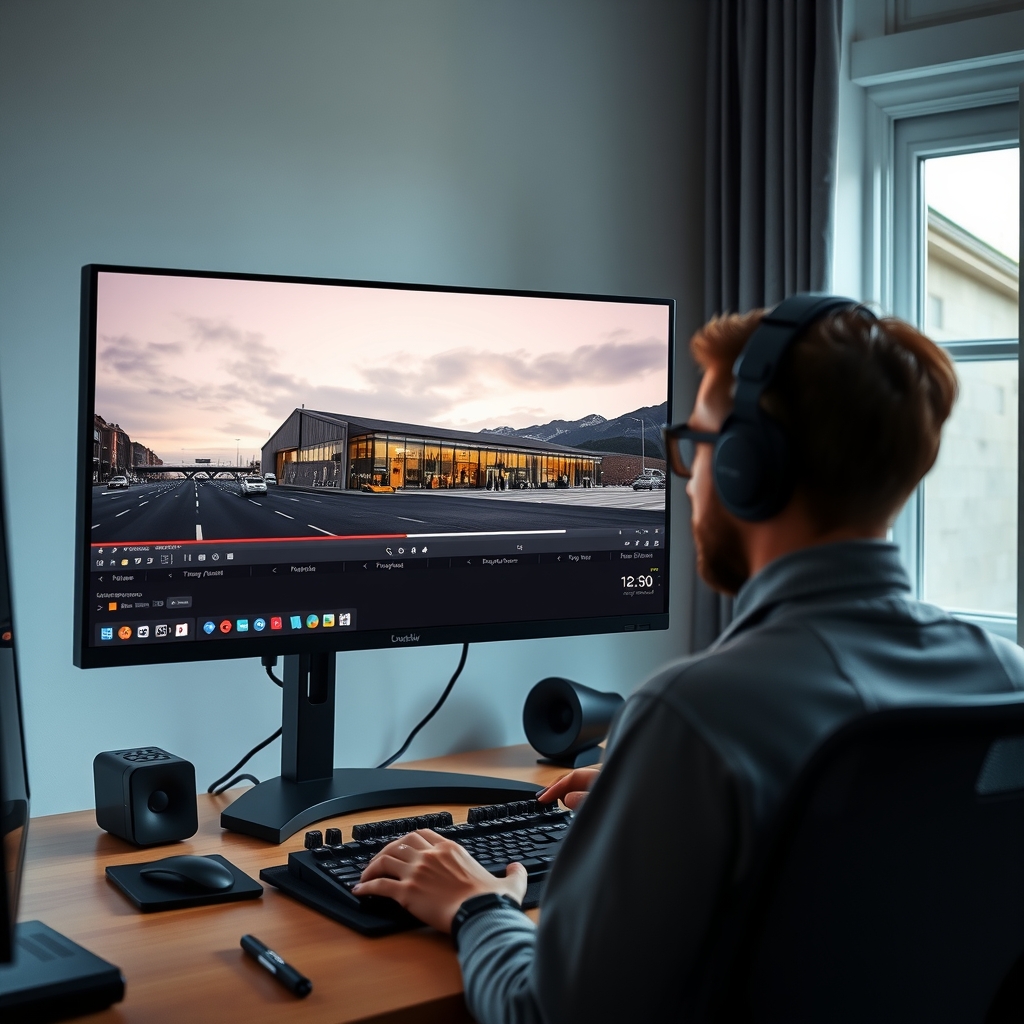

Owners of mid‑range NVIDIA graphics cards often wonder whether their 8 GB of VRAM is enough for AI‑generated video and, if so, which models and settings will give usable results.
The short answer: Carpathron Studio supports several local models that fit within 8 GB, and by adjusting shot length, resolution, and render mode you can produce quality films without exhausting memory.
Which Carpathron Studio models fit an 8 GB GPU?
Local models that run within the 8 GB limit
Carpathron Studio ships with a library of local AI video models that are tested on a system equipped with an NVIDIA graphics card of 8 GB VRAM or more. The two models that are guaranteed to operate on that hardware are Wan 2.2 and Ovi 1.1. Both models are included in the default installation and are automatically marked as compatible during the model‑checking phase.
- Wan 2.2 – generates video from plain text or from a starter picture. It is the smallest model in the library and stays well below the 8 GB VRAM ceiling, making it suitable for continuous use on a mid‑range RTX 5060 (8 GB) or similar GPU.
- Ovi 1.1 – produces picture‑and‑speech shots of 5 or 10 seconds. It runs through the WanGP plug‑in and also respects the 8 GB VRAM budget. Ovi 1.1 is the preferred choice when you need synchronized visual and audio output without exceeding memory limits.
Other local models are available for download from the built‑in library, but they are only marked as “fit” when the system passes a quick VRAM test. On an 8 GB GPU, the library typically excludes larger models such as LTX‑2.5 or Kling 3.0, which are reserved for cloud rendering.
How the model selector works
When you open Carpathron Studio, the Model Library panel scans the installed GPU and reports each model’s VRAM consumption. Models that exceed the available memory are greyed out and accompanied by a tooltip explaining the shortfall. This automatic filtering prevents crashes caused by over‑allocation.
If you install a new local model manually, the same check runs before the model becomes selectable. The application also logs the required VRAM in the console view, allowing you to verify the figure against your hardware specifications.
Choosing the right model for your project
For short narrative pieces (up to three minutes) that rely on consistent characters and locations, Wan 2.2 usually provides the best trade‑off between speed and visual fidelity. Ovi 1.1 should be used when the script contains dialogue that must be lip‑synced to the generated speech; its integrated picture‑and‑speech pipeline reduces the need for post‑processing.
When you need higher resolution or longer shots, consider switching to a cloud model (see the next section) because the local options will start to hit the 8 GB ceiling, especially if you enable multiple concurrent render jobs.
Get Carpathron Studio
Download the latest Windows 10/11 installer from the official page: Carpathron Studio Setup.exe. For more details about the software, visit the Carpathron Studio product page.
How to prepare your PC for AI video rendering
Carpathron Studio runs on Windows 10 or Windows 11 (64‑bit) and requires a modern NVIDIA graphics card with at least 8 GB of VRAM. The application needs roughly 40 GB of free disk space for model files, temporary renders and the built‑in library. Before installing, update the GPU driver to the latest version from the NVIDIA website; this ensures compatibility with the Wan 2.2 and Ovi 1.1 local models.
The software itself is a single installer. Download the latest setup file from the official page and run it with administrator rights. During installation choose the default path so the program can create its model folder under C:\Program Files\CarpathronStudio. After the first launch, open the Model Library manager and let Carpathron download the recommended local models for your hardware. The manager will test each model and mark the ones that fit the PC, so you only keep the versions that run within the 8 GB VRAM limit.
- Verify the operating system. Open
Settings → System → Aboutand confirm you are on Windows 10 version 1903 or newer, or Windows 11. Carpathron Studio does not support 32‑bit builds. - Check GPU specifications. Use
dxdiagor the NVIDIA Control Panel to see the exact VRAM amount. An RTX 5060 8 GB or any card with 8 GB+ passes the requirement. - Free disk space. Open File Explorer, right‑click the drive you plan to install on, and ensure at least 40 GB is available. Delete unnecessary files or move them to another volume if needed.
- Update drivers. Download the latest Game Ready driver from NVIDIA and install it. A reboot is required before proceeding.
- Install Carpathron Studio. Run the Carpathron Studio installer, accept the license, and let the wizard create the program folder and shortcuts.
- Configure the local model library. Launch the app, go to Settings → Model Library, and click “Download recommended models”. The system will fetch Wan 2.2, Ovi 1.1 and any additional free models that match your GPU.
- Test a short render. Create a one‑sentence story, select the Auto mode, and render a single 5‑second shot. Observe the GPU usage in Task Manager; it should stay below the 8 GB limit.
- Enable automatic resume. In Settings enable “Resume after crash” so that long renders can continue without losing progress.
Once these steps are completed, the PC is ready to generate AI video locally. For projects that exceed the 8 GB VRAM ceiling, consider switching to cloud models via fal.ai; the same interface lets you toggle between local and cloud rendering without leaving the app.
Tip: Keep the model folder on an SSD. Faster disk I/O reduces the time spent loading large AI video models and improves overall render throughput.
Optimising render settings for 8 GB VRAM
Choose a suitable resolution
Carpathron Studio stores each rendered frame in GPU memory before it is written to disk. With an 8 GB graphics card, 720p (1280×720) usually leaves enough headroom for the model weights and the frame buffer, while 1080p (1920×1080) can be used when the selected model is lightweight, such as Wan 2.2 or Ovi 1.1. Start a test render at 720p; if the GPU memory usage stays below 6 GB, you can switch to 1080p for a sharper picture. Remember that higher resolution increases both VRAM consumption and render time, so monitor the usage indicator in the app before committing to a full‑length film.
Limit shot length to 5‑10 seconds
Each shot is processed as an independent video segment. The built‑in Whisper speech checker and the video model both allocate memory proportional to the number of frames. Keeping shots between five and ten seconds (at 30 fps this is 150‑300 frames) prevents the GPU from running out of VRAM during a single render. If a scene requires longer dialogue, split it into two consecutive shots; the “Next episode” feature will automatically link the segments while preserving character consistency.
Batch size and model selection
Carpathron Studio does not expose a traditional batch‑size parameter, but the effective batch size is determined by the model you choose. Local models such as Wan 2.2 and Ovi 1.1 are optimized for consumer‑grade GPUs and typically run with a batch of one frame at a time, which is safe for 8 GB cards. When using cloud models via fal.ai (for example LTX‑2.3 Fast), the rendering happens on the provider’s hardware, so local VRAM is only used for preview and post‑processing. For purely local workflows, avoid the larger cloud‑only models like Kling 3.0, which would exceed the memory limits of an 8 GB GPU.
Auto vs Guided mode
In Auto mode the application generates the entire film without pausing for user approval. This is convenient for short projects, but it also means the engine will attempt to render every shot with the current settings, increasing the risk of a VRAM overflow if a shot is unintentionally long. Guided mode lets you approve each step; you can inspect the preview, adjust the resolution, or shorten the shot before the render starts. For an 8 GB system, we recommend starting a new film in Guided mode, confirming that each shot stays within the 5‑10 second window and that the resolution matches the available headroom.
Practical workflow
1. Open Carpathron Studio and select a 720p preset.
2. Choose a local model (Wan 2.2 or Ovi 1.1) from the built‑in library.
3. Enable Guided mode and create the first shot. Keep the script to roughly ten seconds of spoken text.
4. After the preview, click “Render” and watch the VRAM indicator; if it approaches 7 GB, reduce the resolution or split the shot.
5. Repeat for subsequent shots, using the “Next episode” button when you need to continue the story with the same characters.
Following these steps lets you produce a complete short film while staying comfortably within the limits of an 8 GB GPU. For larger projects or higher‑quality output, consider offloading the heavy renders to cloud models; see the Carpathron Studio product page for details on cloud pricing and model availability.
When to use cloud models versus local models
Cost considerations
Local models such as Wan 2.2 and Ovi 1.1 are bundled with Carpathron Studio at no extra charge, allowing you to render up to three complete films per day for free. The only expense is the electricity needed for the GPU while rendering. Cloud models accessed through fal.ai are billed per shot; the application displays the exact price before each render. In our tests a three‑shot film with speech cost about $0.72 using LTX‑2.3 Fast, while the same film with Kling 3.0 Pro was around $2.50. If you produce many short clips, the per‑shot cost can add up quickly, making local models the cheaper choice for high‑volume workflows.
Privacy and data control
All local models run entirely on your machine, keeping the source story, character images and voice recordings on your hard drive. This is ideal for confidential projects, such as internal training videos or proprietary marketing material. Cloud rendering sends the video prompt to fal.ai’s servers, where the model processes it and returns the rendered frames. Although fal.ai does not store the content permanently, the transmission introduces a privacy trade‑off. Users who must comply with strict data‑handling policies should prefer the free, private local models whenever the GPU can accommodate the workload.
VRAM usage and hardware limits
Local models are designed to operate on a GPU with 8 GB of VRAM, but they still consume a substantial portion of that memory, especially when rendering 5‑second shots with Ovi 1.1. When the GPU memory is fully allocated, the application may pause to swap data to disk, extending render time. Cloud models offload the heavy lifting to remote hardware, so the local GPU only needs to handle the preview and the final compositing steps, which typically require far less VRAM. If you notice frequent “out of memory” warnings, switching to a cloud model for the most demanding shots can keep the workflow smooth without upgrading your graphics card.
Choosing the right approach
For a single short commercial or a proof‑of‑concept demo, the free local models provide a fast, private solution with no per‑shot cost. When you need higher fidelity, longer sequences, or you encounter VRAM bottlenecks, cloud models such as LTX‑2.3 Fast or Kling 3.0 Pro become attractive despite their modest price. Because Carpathron Studio shows the cost before each render, you can experiment with a single shot in the cloud, compare quality and price, and then decide whether to continue locally or stay in the cloud for the remainder of the project.
Tip: Start a new film in Auto mode with a local model; if a shot fails due to VRAM limits, switch that shot to a cloud model, confirm the displayed price, and re‑render only the problematic segment.
For a detailed walkthrough of setting up local models, see the Carpathron Studio documentation. If you prefer a fully managed solution, explore the cloud rendering options directly through the fal.ai integration in the same interface.
Performance checklist for 8 GB systems
The table below summarises the most reliable configuration points for Carpathron Studio when the GPU has 8 GB of VRAM. Values are based on tests with an RTX 5060 (8 GB) and the built‑in local models that automatically match the hardware. Use the checklist to verify that each setting stays inside the memory envelope before starting a render.
| Model | Resolution | Shot length | Expected VRAM usage | Typical render time per shot |
|---|---|---|---|---|
| Wan 2.2 (local) | 720p (1280 × 720) | 5 s | ≈ 5.8 GB | ≈ 12 s |
| Wan 2.2 (local) | 720p | 10 s | ≈ 6.3 GB | ≈ 22 s |
| Ovi 1.1 (local) | 720p | 5 s (picture + speech) | ≈ 6.0 GB | ≈ 15 s |
| LTX‑2.3 Fast (cloud) | 720p | 5 s | ‑ (cloud) | ≈ 8 s (network + render) |
| Kling 3.0 (cloud) | 1080p (1920 × 1080) | 5 s | ‑ (cloud) | ≈ 14 s (network + render) |
When you select a local model, keep the resolution at 720p for any shot longer than five seconds. The VRAM headroom drops sharply at 1080p, and the RTX 5060 cannot hold a full‑frame buffer for the larger models without spilling to system memory, which slows the pipeline.
For cloud rendering, the VRAM constraint disappears, but the price preview shown by Carpathron Studio still matters. The test run of a three‑shot film using LTX‑2.3 Fast cost about $0.72, while the same length with Kling 3.0 Pro reached $2.50. Choose the cheaper model when budget is tight, and reserve Kling 3.0 for high‑detail scenes that need richer textures.
Before launching a batch, verify the following items:
- GPU driver version ≥ 525 and Windows 10/11 64‑bit.
- Free disk space ≥ 40 GB for model installation and temporary frames.
- System RAM ≥ 16 GB to avoid swapping when VRAM peaks.
- Disable background GPU workloads (e.g., game overlays, hardware‑accelerated browsers).
- Confirm the selected model appears as “compatible” in the Carpathron Studio model library.
Following this checklist ensures that each render stays within the 8 GB limit, avoids unexpected crashes, and delivers predictable timings. For deeper integration with your workflow, see the Carpathron Studio product page or contact support at contact@qubitpage.com.
Troubleshooting common VRAM‑related issues
Out‑of‑memory errors
When Carpathron Studio runs out of VRAM the render window stops and the app shows an “Out‑of‑memory” message. The most common cause is a shot that exceeds the 8 GB limit, for example a 1080p frame with a complex background generated by the Wan 2.2 model. Reduce the resolution of the shot to 720p or lower; the model still produces recognizable video while using roughly half the VRAM. If the error persists, switch the model to a lighter local option such as Ovi 1.1, which creates 5‑second clips with a smaller memory footprint.
Another quick fix is to limit the number of concurrent frames. In the render dialog, set the batch size to 1 so the app processes one frame at a time. This prevents the GPU from trying to store multiple full‑resolution buffers simultaneously.
Stutter or frame drops during rendering
Stutter usually appears when the GPU is close to its memory ceiling but not completely full. Lowering the shot length helps because each additional second adds another set of tensors to VRAM. In Guided mode, approve shorter shot segments (e.g., 5 seconds instead of 10 seconds) before moving to the next step.
Close any other GPU‑intensive applications before starting a render. Programs such as web browsers with WebGL content, video players, or background AI assistants can consume several hundred megabytes of VRAM, leaving less for Carpathron Studio. Use the Windows Task Manager to end these processes, or temporarily disable hardware acceleration in the browser.
Driver or compatibility problems
Out‑dated graphics drivers often misreport available VRAM, causing unexpected crashes. Visit the NVIDIA website and download the latest driver for your RTX 5060 (or equivalent) card. After installation, restart Windows and verify the driver version in the NVIDIA Control Panel.
If you have recently installed a new Windows update, double‑check that the update did not revert the driver to a generic Microsoft version. Re‑install the official NVIDIA driver if needed.
When to switch to cloud rendering
If you consistently hit the VRAM ceiling despite the above adjustments, consider using a cloud model from fal.ai. Models such as LTX‑2.3 Fast run on any PC because the heavy computation happens on the provider’s servers; only the final video stream is downloaded. Carpathron Studio displays the cost before each render, so you can compare the $0.72 price of a three‑shot film with LTX‑2.3 Fast against the time saved.
For occasional high‑resolution projects, the cloud option is cheaper than upgrading hardware. For regular use, keep the local workflow and apply the fixes listed here.
Quick reference checklist
- Lower resolution to 720p or 480p for demanding models.
- Set batch size to 1 in the render settings.
- Close other GPU‑using applications before rendering.
- Update NVIDIA drivers to the latest version.
- Switch to a cloud model if local VRAM limits remain a bottleneck.
For a detailed guide on choosing the right model for an 8 GB GPU, see Carpathron Studio. If you need further assistance, contact our support team at Contact.
Frequently asked questions
What is the maximum resolution I can use with 8 GB VRAM?
Carpathron Studio recommends staying at 720p (1280 × 720) when the GPU has 8 GB of VRAM. Higher resolutions quickly exceed the memory budget because each frame stores a full‑size texture and intermediate activations for the AI video model. If you need 1080p, consider using a cloud model or reducing the number of concurrent shots.
Can I mix local and cloud models in the same project?
Yes. The application lets you select a local model for some shots and a cloud model for others within a single film. You simply choose the desired model in the shot‑creation dialog; the software will upload the cloud‑rendered shots and keep the locally rendered ones on your PC. Prices for cloud renders are shown before each paid shot, so you can balance cost and performance.
How does shot length affect memory consumption?
Shorter shots (5‑10 seconds) use less VRAM because fewer frames need to be stored in the GPU at once. Longer shots increase the frame buffer and the intermediate tensors that the AI model processes, which can push an 8 GB card beyond its limit and trigger automatic re‑rendering with the quality checker. Splitting a long scene into multiple shorter shots is a practical way to stay within the memory envelope.
Do I need an internet connection for local rendering?
No. When you run a local model such as Wan 2.2 or Ovi 1.1, all computation happens on your PC without contacting external servers. The internet is only required if you use a cloud model from fal.ai or need to download additional models from the built‑in library. Offline mode works as long as the required model files are already installed.
Is there a way to see how much VRAM a model will use before rendering?
Carpathron Studio displays an estimated VRAM usage for each selected model in the model‑selection pane. The estimate is based on the model’s architecture, the chosen resolution, and the shot length. This preview lets you switch to a lighter model or adjust settings before committing to a render.
Getting started with AI video on your 8 GB GPU
Begin by installing Carpathron Studio from the official download link. Verify that your PC meets the minimum requirements: Windows 10/11 64‑bit, an NVIDIA GPU with at least 8 GB VRAM, and roughly 40 GB free disk space. Once the app launches, select the Auto mode for a quick test film or Guided mode if you prefer to approve each generated shot.
Choose a local model that matches your hardware; the built‑in library will automatically detect compatible models such as Wan 2.2 or Ovi 1.1. For short clips (5‑10 seconds) the Ovi model works well and stays within the VRAM limits. Enable the Whisper speech checker to ensure dialogue matches the script, and use Piper voices for clear multilingual narration.
If you run out of local resources, switch to a cloud model via your own fal.ai key; the price preview lets you stay within budget before each render. Save characters and places in the library to maintain consistency across shots, and export the final video as MP4 or MOV.
With these steps you can produce polished AI‑generated videos on an 8 GB GPU without sacrificing quality. Explore Carpathron Studio to start creating your first film today.