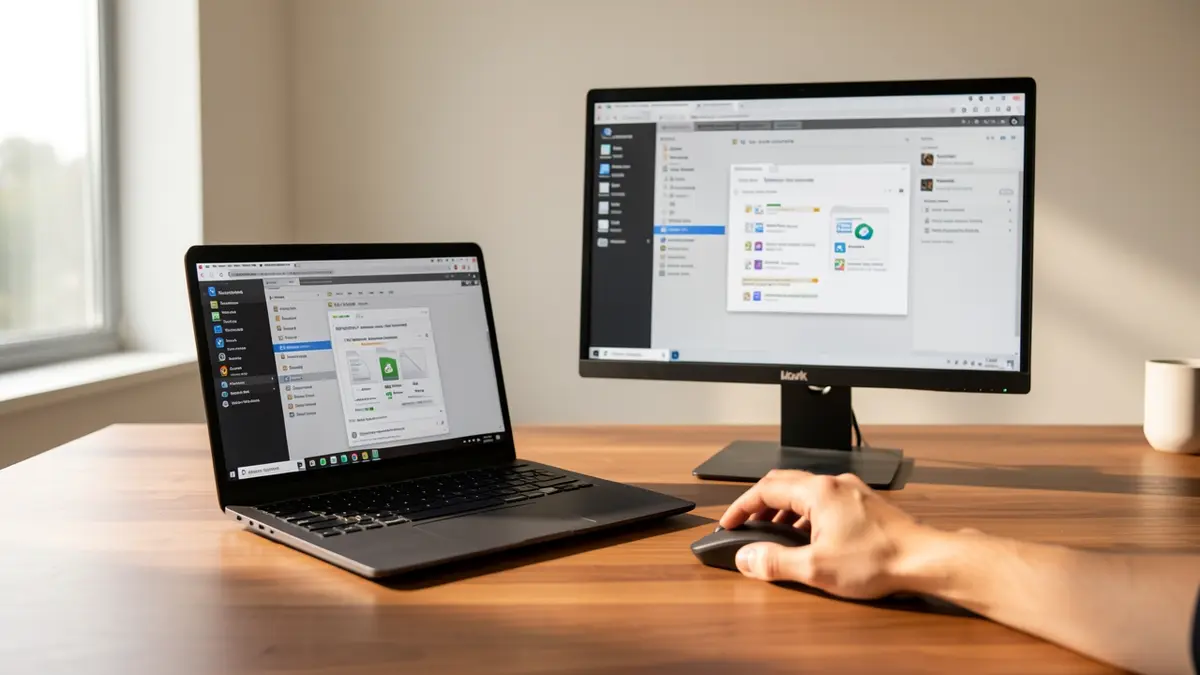
Many of us want to assist a parent with a slow or glitchy computer, but we aren’t near them. The challenge is finding a safe, easy way to see and control their PC without traveling.
The answer is to use Carpathron Remote, a dedicated remote‑desktop app that works on Windows and Linux, lets you share an ID and one‑time password, and includes chat, voice, and file transfer.
What is Carpathron Remote and why it fits family support
Carpathron Remote is Qubitpage’s lightweight remote‑desktop application for Windows and Linux. It lets a family member control another PC simply by entering an ID and a one‑time password that the remote user generates. The connection opens a full desktop view, supports mouse and keyboard input, and includes a built‑in chat window, voice call option, and drag‑and‑drop file transfer. An additional view‑only presentation mode lets the helper guide the user without taking control, which is handy when the goal is to show a setting rather than change it.
Free personal tier – enough for occasional help
The free tier is intended for personal use and imposes two clear limits: each session may not exceed 20 minutes, and the total daily usage cannot pass two hours. These caps are sufficient for most family scenarios, such as fixing a printer driver, updating a web browser, or showing how to back up photos. Importantly, receiving a connection never requires a licence, so the person being helped can use the app without any cost.
Pro plan – regular support for multiple devices
For households that share several computers, the Pro plan removes the session‑time restriction and expands the number of PCs a single user can control. At €3 per month or €19.99 per year per PC, a user may manage up to three devices simultaneously. This level is ideal for families with a desktop, a laptop, and a media PC, allowing the same support account to switch between them without re‑installing the software.
Max plan – unlimited device control
The Max subscription eliminates the three‑device ceiling altogether. Priced at €5 per month or €49.99 per year per PC, it grants unlimited control over any number of computers owned by the subscriber. This is useful for extended families or small home offices where new machines are added frequently. Both paid tiers include the same feature set as the free version—chat, voice, file transfer, presentation mode, and the optional AI technician that can automate routine checks when the remote user approves admin prompts.
Both plans are delivered via a simple PayPal transaction, after which the licence key is sent by email. Existing users can upgrade through the pricing page, and new users can download the appropriate installer from the product page. The straightforward pricing structure and the ability to start with a free account make Carpathron Remote a practical choice for anyone who wants to help relatives troubleshoot computers without traveling to their home.
Preparing both computers for a remote session
Download the appropriate client
Start by opening the Microsoft Store on the Windows machine that will act as the controller. Search for Carpathron Remote or follow the direct link on the Microsoft Store page. Click Get and wait for the installation to finish. The Windows client installs automatically to the standard program folder and adds a shortcut to the Start menu.
On the Linux side, open a web browser and navigate to the Carpathron Remote download page. Choose the format that matches your distribution: the AppImage works on most modern distributions without additional dependencies, while the .deb package is ideal for Debian‑based systems such as Ubuntu or Mint. Click the appropriate link, then save the file to your Downloads folder.
Install the Linux client
If you downloaded the AppImage, make it executable with a single terminal command:
chmod +x ~/Downloads/CarpathronRemote‑x86_64.AppImage
Run the file by double‑clicking it or executing ~/Downloads/CarpathronRemote‑x86_64.AppImage. The application will launch and create a desktop entry for future use.
For the .deb package, install it with the system package manager:
sudo dpkg -i ~/Downloads/carpathron-remote_*.deb && sudo apt‑get install -f
This command resolves any missing dependencies and registers Carpathron Remote in your applications menu.
Initial launch and basic configuration
Open Carpathron Remote on both computers. The first screen asks you to create a user profile; you can use any name and an optional email address for licence delivery. No licence key is required for the free tier, so you may skip that step if you only need short sessions.
After the profile is saved, each instance displays a unique ID and a button to generate a one‑time password. Keep the window open; you will need to share the ID with the person you intend to help. The remote PC (the one being assisted) does not need a licence to receive connections, so the assistant can start the session immediately.
Network considerations
Both machines must have an active internet connection and be able to reach outbound TCP ports used by Carpathron Remote (the service negotiates the port automatically). If either computer sits behind a corporate firewall, ensure that outbound traffic on port 443 is allowed; this is the same port used for HTTPS and is rarely blocked.
On a home network, the default router configuration usually permits the required traffic. If you encounter connection failures, try disabling any VPNs or proxy settings temporarily, then retry the connection.
Tip: Verify that the Windows Store version and the Linux client are both up to date before starting a support session. An outdated client can reject newer one‑time passwords, causing unnecessary delays.
With the applications installed, launched, and basic network checks completed, you are ready to exchange IDs and start a secure remote assistance session. The next step—creating a secure connection with an ID and one‑time password—builds on this foundation.
Creating a secure connection – ID and one‑time password
Carpathron Remote uses a short alphanumeric ID that identifies the host computer for the duration of a support session. The ID is generated locally, so no external server stores it, which keeps the connection private. After the ID is shared, the helper creates a one‑time password that expires once the session ends, preventing reuse.
Both parties must have the application installed; the helper can download it from the remote desktop page or the Microsoft Store for Windows. The person receiving help only needs the receiving mode, which never requires a licence.
- Open Carpathron Remote on the computer that needs assistance. Click the
Generate IDbutton on the main screen; the app displays a six‑digit code such asAB3D9F. - Copy the ID to the clipboard. Use the
Copyicon next to the code, then paste it into a secure messaging channel (e‑mail, instant messenger, or phone call) to send it to the helper. - The helper launches Carpathron Remote on their own PC. In the
Connectfield, they paste the received ID and pressConnect. The app automatically creates a one‑time password and shows it on the helper’s screen. - The helper shares the one‑time password with the user. This password appears only for the current session; the user must enter it into the prompt that appears on their screen within 30 seconds.
- The user enters the password and confirms. After typing the password, they click
Accept. The remote PC then displays an admin prompt asking whether to allow the incoming control. - Approve the admin prompt. The user clicks
Allowto grant the helper full control. If the helper only needs to view the screen, the user can selectView‑onlymode instead. - Begin the support session. Once the prompt is approved, the helper sees the remote desktop, can open the chat window, start a voice call, or drag files across the connection.
- End the session securely. When the helper clicks
Disconnect, the one‑time password becomes invalid and the ID disappears, ensuring no further connections can be made without generating a new ID.
Because the ID and password are generated locally and expire after a single use, the connection remains protected against unauthorized access. If the user wants to keep a record of the session, they can enable the optional AI technician by providing their own AI key, but the AI only acts after the user approves any admin prompts, preserving the same security model.
For pricing details or to upgrade to a plan that supports unlimited PCs, visit the Carpathron Remote pricing page. If you have questions about setup, the support team can be reached at contact@qubitpage.com.
Using chat, voice, and file transfer during support
Built‑in chat window
After the remote session starts, a small chat pane appears at the bottom of the Carpathron Remote window. Type messages directly into the field and press Enter to send. The chat history is visible to both participants, which helps you keep a record of troubleshooting steps without interrupting the screen view. Because the chat runs over the same encrypted channel as the remote connection, you do not need a separate messenger application.
Voice call button
Next to the chat input, an icon shaped like a microphone launches a voice call. Click the button once to request a call; the remote user must accept the prompt that appears on their screen. Once accepted, audio streams in real time, allowing you to explain complex actions while you demonstrate them. The voice channel automatically ends when the remote session is closed, so there is no lingering background process.
Drag‑and‑drop file transfer
Carpathron Remote supports instant file sharing through drag‑and‑drop. Locate the driver, document, or script on your local machine, click and hold the file, then drop it onto the remote desktop view. A small transfer window shows progress and confirms when the file lands in the remote PC’s default download folder. The recipient can then open the file immediately, install a driver, or copy it to another location. This method eliminates the need for email attachments or external cloud links.
The file transfer works in both directions. If the remote user needs to send you a log file, they can drag the file from their desktop onto your local window, and the same progress indicator appears on your side. The feature respects the session limits of the free plan—each transfer counts toward the 20‑minute session cap—but it remains fully functional under the Pro and Max subscriptions without additional configuration.
Tip: Before starting a session, ask the remote user to close any unnecessary applications. This reduces bandwidth usage, making the chat, voice, and file transfer smoother, especially on slower connections.
All three communication tools are accessible from the same toolbar, so you can switch from typing to speaking to sending files without leaving the remote view. For detailed pricing and plan differences, see the Carpathron Remote product page. If you need additional assistance configuring the remote PC, the contact page provides direct access to Qubitpage support.
Comparison of free vs. Pro vs. Max plans
The free tier of Carpathron Remote is designed for occasional assistance, such as helping a family member troubleshoot a printer or install a software update. It limits each session to 20 minutes and caps total usage at two hours per day, which is sufficient for short, one‑off tasks. Receiving a connection never requires a licence, so you can let others connect to your machine without any cost.
Upgrading to the Pro plan removes the 20‑minute session ceiling and raises the daily allowance to the full two‑hour limit, while also allowing you to control up to three PCs from a single licence. This is useful for households with multiple devices or for small‑business owners who need to support a few workstations. The Pro subscription is priced at €3 per month or €19.99 per year per PC, and payment is handled through PayPal with the licence key delivered by email.
The Max plan targets power users who manage many machines, such as IT volunteers or remote tutors. It offers unlimited session length, no daily cap, and the ability to control an unlimited number of PCs under a single licence. The cost rises to €5 per month or €49.99 per year per PC, still billed via PayPal. Because the licence key is sent by email, you can quickly distribute it to multiple technicians or family members.
Choosing the right tier depends on how frequently you provide remote help and how many computers you need to manage. The table below summarises the key differences, making it easy to compare features at a glance.
| Plan | Session length | Daily limit | PCs you can control | Price (per PC) |
|---|---|---|---|---|
| Free | Up to 20 minutes | Maximum 2 hours | Unlimited (receiving only) | Free |
| Pro | Unlimited | Up to 2 hours | Up to 3 PCs | €3 / month or €19.99 / year |
| Max | Unlimited | Unlimited | Unlimited PCs | €5 / month or €49.99 / year |
If you anticipate occasional help, start with the free option and evaluate whether the session limits meet your needs. When you regularly assist multiple users or need to control several machines, the Pro plan offers a cost‑effective upgrade. For organisations or volunteers who provide continuous support across many devices, the Max plan eliminates restrictions and simplifies licence management.
All plans include chat, voice calls, drag‑and‑drop file transfer, and the optional AI technician feature, which you can enable by providing your own AI key. For detailed pricing information, visit the Carpathron Remote pricing page or contact us via the contact form.
Tips for a smooth remote support experience
Verify bandwidth before you start
Both the helper and the client should run a quick speed test, such as speedtest.net, and note the downstream and upstream rates. Carriage‑on Remote works best with at least 2 Mbps download and upload for a stable video feed. If the numbers fall below this threshold, ask the client to close background downloads, pause streaming services, or switch to a wired Ethernet connection. A brief check prevents dropped frames and the need to reconnect mid‑session.
Choose the right display mode
When the goal is to demonstrate a procedure—installing a driver, configuring a browser setting, or walking through a software wizard—activate the view‑only presentation mode. This mode disables remote control while still sharing the screen, so the client can follow along without risking accidental clicks. To enable it, the helper clicks the “Presentation” button in the Carriage‑on Remote toolbar after the connection is established. The client can then ask questions via chat or voice without the session being interrupted by unintended input.
Leverage chat and voice for clarity
Even a short voice call can reduce misunderstandings that often arise from text alone. Carriage‑on Remote includes a built‑in voice channel; simply press the microphone icon to start a call. Use the chat window for file names, command snippets, or links, and keep the voice channel open for real‑time feedback. This dual‑channel approach speeds up troubleshooting and helps the client feel more engaged.
Transfer files securely
If a driver, patch, or configuration file is needed, drag the file from the helper’s file explorer onto the Carriage‑on Remote window. The transfer uses an encrypted channel, and the client receives a prompt to accept the file. Confirm that the client saves the file in a known location, such as the desktop or a dedicated “RemoteSupport” folder, before proceeding with installation.
Enable the optional AI technician for admin prompts
When the session requires elevated privileges—installing software, changing system settings, or running a command in the SSH terminal—activate the AI technician feature. The helper provides their own AI key, and the remote PC displays a prompt asking the local user to approve the admin action. This extra layer ensures that privileged commands are only executed with the client’s explicit consent, reducing security concerns while still allowing the helper to complete the task efficiently. The AI technician can also suggest next steps based on the command output, streamlining the workflow.
Maintain a clean session log
After the support call, click the “Save Log” button to export a transcript of chat, voice timestamps, and file transfers. Store the log in a secure folder for future reference or for compliance purposes. If the client needs a follow‑up, you can quickly review the log to recall which steps were already performed.
Plan for follow‑up
Before ending the session, ask the client to verify that the issue is resolved and note any remaining questions. Schedule a brief check‑in after 24 hours if the problem is complex. Providing a clear next‑step list—such as “restart the computer, then open the application and verify the settings”—helps the client feel confident and reduces the likelihood of repeat calls.
For a full overview of Carriage‑on Remote’s capabilities, visit the product page or the pricing page to see which plan best matches your support needs.
Frequently asked questions
How do I install Carpathron Remote on my parent's Linux PC?
Download the AppImage or the .deb package from the /remote section of the Qubitpage website. For the AppImage, make it executable with chmod +x carpathron-remote.AppImage and run it; for the .deb, install it using sudo dpkg -i carpathron-remote.deb. After installation, launch the application, create an account or sign in, and you are ready to generate an ID for remote sessions.
Can I help my parent without buying a licence?
Yes. The free tier allows you to control a remote PC for sessions up to 20 minutes, with a daily cap of two hours. Receiving connections never requires a licence, so your parent can host the session without any cost.
What if the remote PC asks for admin permission?
When an admin prompt appears on the remote machine, the person sitting at that PC must approve it before the action proceeds. This safeguard ensures that the remote technician cannot execute privileged commands without explicit consent from the local user.
Is the connection encrypted and safe for personal data?
Carpathron Remote uses encrypted channels for all traffic, including screen sharing, file transfer, chat, and voice calls. The encryption protects personal data from interception, and the optional AI technician operates only with a user‑provided AI key, adding another layer of security.
How long can a free session last and can I extend it?
A free session may run for a maximum of 20 minutes before it automatically ends. You can start a new session after the current one ends, provided the total daily usage does not exceed two hours. Extending a single session beyond 20 minutes requires upgrading to a Pro or Max licence.
Wrap‑up: Remote help made easy
By following the steps outlined above you can establish a secure connection, verify the remote user’s identity with the one‑time password, and switch to the appropriate mode—full control, view‑only, or chat‑only—depending on the task. Use the built‑in file transfer to exchange logs or configuration files, and leverage the SSH terminal for quick command‑line fixes without leaving the remote session.
Remember to keep the session short when using the free tier (under 20 minutes) and to respect the remote user’s approval prompts, especially when the optional AI technician is enabled. If you find yourself helping multiple devices regularly, the Pro or Max plans remove time limits and let you manage several PCs from a single dashboard.
With Carpathron Remote you have a lightweight, cross‑platform solution that blends chat, voice, and file sharing into a single window, making remote assistance straightforward for both casual and professional users. Explore Carpathron Remote to get started today.