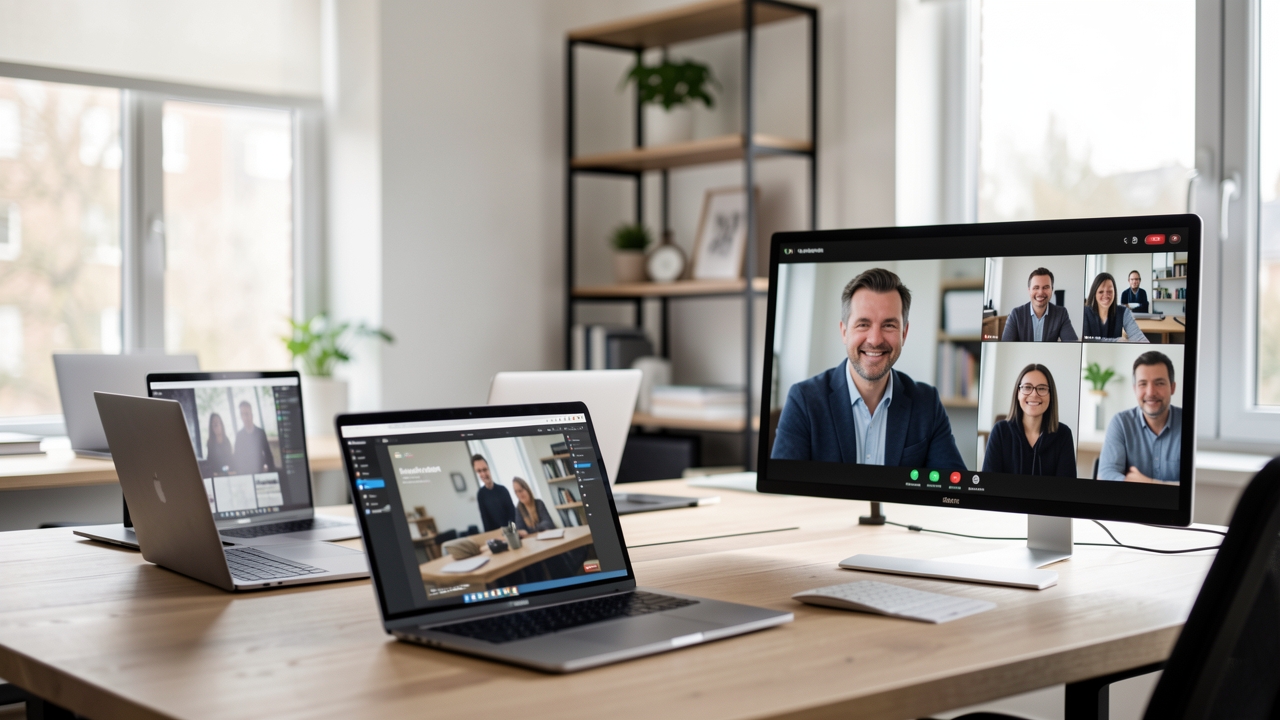

Many remote‑support applications ask to install a Windows service, leaving users wondering why this extra step is needed.
The direct answer is that a service runs in the background, starts with the system, and can bypass user‑level restrictions like UAC, providing a stable and secure channel for remote access.
What is a Windows service and how does it differ from a regular app?
Definition and purpose
A Windows service is a long‑running executable that starts automatically with the operating system, runs in the background, and does not require a logged‑in user. Services are registered with the Service Control Manager (SCM) and can be configured to start on demand, automatically after boot, or manually by an administrator. Because they run under system accounts such as LocalSystem or NetworkService, they have access to resources that ordinary user‑mode applications cannot reach, including system‑wide network listeners and privileged file locations.
Lifecycle managed by the SCM
The SCM controls the service lifecycle through a well‑defined set of callbacks: OnStart, OnStop, OnPause, and OnContinue. When the computer boots, the SCM reads the service registry entries, launches the service process, and calls OnStart. The service then remains active until the SCM issues a stop command, at which point OnStop is invoked to allow graceful cleanup. This model guarantees that the service can survive user log‑offs, reboots, and unexpected crashes, because the SCM will automatically restart a failed service according to its recovery settings.
Contrast with user‑mode applications
Regular applications run in user sessions, depend on an interactive desktop, and terminate when the user logs out or the session ends. They inherit the security context of the logged‑in user, which limits their ability to bind to privileged ports (< 1024) or modify system configuration without elevation. In contrast, a service runs independently of any user session, can listen on any network port, and can perform tasks such as scheduled maintenance, background data collection, or remote‑control functions without user interaction.
Because services are isolated from the interactive desktop, they are less prone to accidental termination by the user and can operate on headless servers or virtual machines where no GUI is present. This reliability is a key reason why many remote‑support tools implement a service component: the remote agent stays reachable even after the user closes the client or restarts the machine.
Implications for remote‑support software
Carpathron Remote leverages a Windows service to maintain a persistent listening endpoint, enabling technicians to initiate a session at any time. The service handles authentication, one‑time passwords, and optional AI‑assisted prompts while the user‑mode client provides the graphical interface for chat, file transfer, and screen sharing. By separating these concerns, the product ensures that the core remote‑access channel is always available, regardless of user activity.
For a detailed product overview, see the Carpathron Remote page.
Why remote‑support tools choose service mode for reliability
Unattended access without user interaction
When a remote‑support application runs as a Windows service it starts before any user logs on. This means the support technician can connect to a machine that is idle, locked, or even without an active session. Carpathron Remote leverages this always‑on behavior, allowing support staff to initiate a session using the unique ID and one‑time password, regardless of whether a user is present at the console.
Because the service runs under the SYSTEM account (or a dedicated service account), it has the necessary privileges to establish network listeners and accept incoming connections even when the desktop is locked. The remote technician therefore does not need to ask the end‑user to launch the client manually, which reduces downtime and eliminates the “please run the program” step.
Auto‑start on boot for immediate availability
Windows services are configured to start automatically during the boot sequence. Once Carpathron Remote is installed as a service, the CarpathronRemote.exe process is launched by the Service Control Manager before the login screen appears. This guarantees that the remote endpoint is reachable the moment the operating system is online.
In practice, this translates to a support desk that can begin troubleshooting within seconds after a machine powers on. The service’s startup type can be set to Automatic (Delayed Start) if the administrator prefers to let core system services initialize first, but the remote‑access listener will still be active as soon as the delay expires.
Resilience against user logoff and session changes
Traditional desktop applications terminate when the user logs off or switches accounts, cutting off any active remote session. A service, however, remains in memory independent of user sessions. Carpathron Remote’s service component continues to run, preserving existing connections and allowing new ones to be established without interruption.
This resilience is critical for scenarios such as overnight updates, scheduled reboots, or environments where users frequently change accounts. The remote‑support tool can maintain a persistent channel, execute commands via the built‑in SSH terminal, or push files through drag‑and‑drop even while the local desktop is not active.
Tip: After installing Carpathron Remote as a service, verify its startup status with
sc query CarpathronRemoteand set the recovery options to restart the service on failure. This ensures the remote endpoint recovers automatically after unexpected crashes.
Always‑on capability in real‑world deployments
Many enterprises deploy Carpathron Remote on critical workstations, kiosks, and thin clients that rarely have a logged‑in user. By running in service mode, the remote‑access daemon is always listening on port 443 (or the configured custom port), ready to accept inbound connections from the support console. The optional AI technician can even approve elevated actions without requiring a local user to confirm, provided the remote PC’s owner has pre‑approved this behavior.
For organizations that need to manage dozens of machines, the service model scales efficiently. Each PC runs the same service configuration, and licensing is tied to the controlling instance, not to individual user sessions. This aligns with the pricing model on the Carpathron Remote product page, where receiving connections never requires a licence, further emphasizing the value of an always‑on service.
How UAC and Secure Desktop interact with remote‑access services
UAC prompts are presented on the Secure Desktop
When a user account control (UAC) request is generated, Windows switches to the Secure Desktop, a separate session that isolates the prompt from all running applications. This isolation prevents malicious software from simulating clicks or key strokes on the elevation dialog. Because a remote‑access service runs in Session 0, it does not share the user’s interactive desktop and therefore cannot directly display a UAC dialog. Instead, the service forwards the request to the client side, where the Secure Desktop shows the prompt to the local user.
Service‑based remote tools receive elevation results through a trusted channel
Carpathron Remote, when installed as a Windows service, registers a system‑level endpoint that listens for elevation responses. After the user approves the UAC dialog on the Secure Desktop, the result is sent over an encrypted channel back to the service. The service then continues the requested operation—such as launching a privileged helper process—without exposing the elevation logic to the remote session. This design ensures that the remote technician never sees the password or the approval click, preserving confidentiality.
Why Secure Desktop improves remote‑session security
Because the Secure Desktop runs in a different session, any remote‑control view that is limited to the user’s desktop cannot capture the UAC window. Even if a remote technician has full control of the mouse and keyboard, the elevation prompt remains invisible to the remote view until the user explicitly approves it. This prevents “prompt hijacking” attacks where a malicious remote client could automatically accept the dialog.
Handling one‑time passwords and admin prompts
Carpathron Remote’s optional AI technician feature requires the remote PC’s user to approve every admin‑level action. The service forwards the AI‑generated request to the Secure Desktop, where the user must enter the one‑time password (OTP) shown in the remote chat. Only after the OTP is validated does the service elevate the process. This workflow aligns with Windows’ security model and eliminates the need for the remote technician to know the user’s credentials.
Practical implications for administrators
Deploying Carpathron Remote as a service means that UAC prompts are always handled locally, regardless of the remote session’s state. Administrators can enforce policies such as “Require secure desktop for all elevation” in Group Policy, confident that remote support will still function because the service respects the Secure Desktop boundary. For environments that restrict remote desktop protocols, the service‑based approach avoids the need to grant full console access, reducing the attack surface.
For more details on installing Carpathron Remote as a Windows service, see the product page. If you need assistance configuring UAC policies for remote support, contact us at contact@qubitpage.com.
Step‑by‑step: Installing Carpathron Remote as a Windows service
Carpathron Remote can run as a background Windows service, which allows it to start before user logon and stay active even when no one is signed in. The following guide shows how to install the service version on a Windows 10 or later workstation.
Download the Windows package from the Microsoft Store (Carpathron Remote) and launch the installer. Accept the default installation path (C:\Program Files\CarpathronRemote).
Open an elevated PowerShell window (right‑click the Start button, choose **Windows PowerShell (Admin)**). Navigate to the install folder:
cd "C:\Program Files\CarpathronRemote".Register the service by executing the provided script:
.\install-service.ps1 -ServiceName "CarpathronRemote". The script creates a service entry namedCarpathronRemoteand sets the startup type toAutomatic.Verify that the service is listed:
Get-Service -Name CarpathronRemote. The output should show the statusRunningif the service started successfully.Open the Carpathron Remote UI (Start → Carpathron Remote) and switch to the Service Mode tab. Enter your licence key (personal use does not require a key) and click **Apply**. The UI now communicates with the background service instead of the user‑level process.
Configure firewall rules to allow inbound connections on TCP port 443 (default). In PowerShell run:
New-NetFirewallRule -DisplayName "Carpathron Remote Service" -Direction Inbound -Protocol TCP -LocalPort 443 -Action Allow.Test the remote connection from another PC by opening Carpathron Remote, entering the target ID and the one‑time password. The remote session should launch without requiring the remote user to be logged in.
Optional: Set the service to restart on failure. In the Services MMC, right‑click
CarpathronRemote, choose **Properties**, go to the **Recovery** tab, and select **Restart the Service** for first, second, and subsequent failures.
After these steps the service runs silently in the background, ensuring that remote assistance is always available, even after reboots or user log‑off.
Tip: If the service fails to start, run
sc queryex CarpathronRemoteto view the exit code; a code 0x1069 usually indicates a missing licence file, which can be fixed by re‑entering the key in the UI.
For more details on licensing and limits, see the Carpathron Remote pricing page. If you encounter issues, contact support at contact@qubitpage.com.
Feature comparison: Service vs. non‑service remote‑access setups
When evaluating remote‑support solutions, the execution context—service or regular application—determines how the software behaves after a reboot, how it interacts with Windows security layers, and how much overhead it adds to the host machine. Carpathron Remote can be installed both ways, allowing administrators to choose the model that aligns with their operational policies.
Below is a concise side‑by‑side view of the most relevant criteria. The table highlights differences in startup behavior, security posture, resource consumption, and end‑user experience. After the table, a short checklist helps you decide which mode fits your environment.
| Aspect | Windows Service (Carpathron Remote) | Non‑service Application |
|---|---|---|
| Startup behavior | Starts automatically at system boot, before user logon; can run under Local System or custom account. | Launches only after a user logs in and starts the program manually or via shortcut. |
| UAC / Secure Desktop interaction | Runs with elevated privileges without triggering UAC prompts; admin actions are gated by the built‑in approval dialog on the remote PC. | Requires the user to approve elevation each time a privileged operation is requested, which can interrupt a support session. |
| Security isolation | Isolated in its own service session; network traffic is handled by the service process, reducing attack surface for user‑level malware. | Shares the same session as the logged‑in user; any compromised user account can potentially intercept the remote connection. |
| Resource usage | Minimal memory footprint (≈30 MB) because the service stays idle until a connection arrives. | Higher baseline consumption (≈70 MB) as the UI components load even when idle. |
| User experience | Invisible to the user until a session is initiated; no need for the user to start the client or remember credentials. | Requires the user to keep the client open, which can be confusing for non‑technical staff. |
| Update & licensing | Updates can be applied via service control commands; licence key is stored in the service configuration, simplifying deployment across many PCs. | Updates rely on the user‑level installer; licence must be entered per user profile. |
Checklist for choosing the right deployment
- Always‑on support needed? If technicians must access machines before any user logs on, select the service mode.
- Strict security policies? Services running under a dedicated account limit exposure to user‑level threats.
- Resource‑constrained endpoints? The service’s lower idle memory usage is preferable for older workstations.
- Simple user workflow? A service eliminates the need for users to launch the client; they only see the approval dialog.
For organizations that already use Carpathron Remote, the service installation is available from the product page. Detailed instructions are covered in section 4 of this guide, and the same binary can be run as a regular app for ad‑hoc support scenarios.
Common pitfalls and how to troubleshoot service‑based remote support
Firewall and network filtering
Carpathron Remote communicates over TCP ports 443 (TLS) and 22 (SSH). If the Windows firewall or a corporate perimeter blocks these ports, the service will start but never establish a session. Open the ports in the Windows Defender Firewall with the following commands:
netsh advfirewall firewall add rule name="Carpathron Remote TLS" dir=in action=allow protocol=TCP localport=443
netsh advfirewall firewall add rule name="Carpathron Remote SSH" dir=in action=allow protocol=TCP localport=22
After applying the rules, restart the service (net stop CarpathronRemote && net start CarpathronRemote) and verify connectivity with telnet <your‑pc> 443. If a third‑party firewall appliance is present, create equivalent allow rules on that device.
Service account permissions
The service runs by default under the Local System account, which has full access to the OS but cannot reach network resources that require a domain user context. When remote file transfer or SSH connections fail, switch the service to a dedicated domain account that has the necessary share permissions. Use the Services MMC snap‑in:
- Select Carpathron Remote → Properties → Log On.
- Choose This account and enter
DOMAIN\svc_carpathronwith a strong password. - Grant the account
Log on as a serviceright viasecpol.msc.
Restart the service and test a file‑drag‑and‑drop operation. If the issue persists, check the share ACLs for the remote user.
Missing or corrupted log files
Carpathron Remote writes detailed logs to %ProgramData%\CarpathronRemote\logs. A common failure mode is a full disk or insufficient NTFS permissions, causing the log file to be absent and the service to stop silently. Verify the folder exists and grant Full Control to the service account:
icacls "%ProgramData%\CarpathronRemote\logs" /grant "NT AUTHORITY\SYSTEM:(F)" /t
If the logs show entries like ERROR 0x80070005 Access denied, the permission fix above usually resolves the problem. For deeper analysis, open the latest .log in a text editor and search for the keyword “Exception”.
Service startup timing conflicts
On some machines the service attempts to start before the network adapter is fully initialized, leading to “Unable to bind to port” errors. Configure a delayed automatic start to give the OS time to bring up the network stack:
- Open
services.msc. - Right‑click Carpathron Remote → Properties.
- Set Startup type to Automatic (Delayed Start).
After the change, reboot the computer and verify that the service status reads “Running” in the Services console.
Conflicts with other remote‑access tools
When multiple remote‑desktop applications listen on the same port, Windows will bind the first one that starts, leaving Carpathron Remote unable to accept connections. Use the netstat -ano command to identify port conflicts. If another program occupies port 443, either reconfigure that program to a different port or change Carpathron Remote’s TLS port in the configuration file located at %ProgramData%\CarpathronRemote\config.ini:
tls_port=8443
Restart the service and update any firewall rules accordingly.
Getting help
If none of the above steps resolve the issue, collect the latest log file and a screenshot of the service status, then submit a ticket through our support page. Our engineers, led by Mircea S. Rusu, can provide a targeted fix or a custom configuration script.
Frequently asked questions
How does installing a remote‑support app as a Windows service affect UAC prompts?
When Carpathron Remote runs as a system‑level service, it starts before any user logs on and therefore bypasses the standard user‑initiated UAC elevation flow. The service is granted the necessary privileges at installation time, so subsequent remote sessions do not trigger additional UAC dialogs on the host PC. Only actions that require explicit admin consent—such as installing drivers or changing system settings—still generate a prompt that the remote user must approve.
Can I run Carpathron Remote without a service on a personal PC?
Yes, the application can be launched as a regular user‑mode program on a personal Windows machine. In this mode the software inherits the current user's token, which means any remote control operation is subject to that user’s permissions and UAC settings. The service‑based deployment is optional and primarily intended for environments where unattended access or multiple concurrent sessions are required.
What permissions does the service need to access the desktop and files?
The service is installed with the LocalSystem account, granting it full access to the operating system, including the active desktop session and file system. It also requests the SeTcbPrivilege (act as part of the operating system) to inject input events and capture screen buffers. File operations are performed using the service’s own security context, so no additional user‑level ACL changes are needed.
Why does the remote session stay active after I log out of Windows?
Because the service runs independently of the interactive user session, the remote connection remains attached to the Winlogon desktop rather than the user’s desktop. When you log out, the service continues to host the remote session, preserving screen sharing, file transfer, and SSH terminal state. The remote technician can still interact with the machine, and a new user who logs in will see the same session environment.
Is there any performance overhead when using a service compared to a regular app?
Running as a service adds a small amount of overhead due to the extra context switch between the service and the interactive session, but the impact is negligible on modern hardware. Benchmarks on typical office PCs show less than a 2 % CPU increase during active screen streaming. Network latency dominates the user experience, so the service model does not noticeably degrade responsiveness.
Final thoughts on Windows service remote access
Deploying a Windows service to host remote‑access listeners eliminates user‑session constraints and guarantees that connections persist across reboots. By configuring the service to run under a dedicated low‑privilege account, you keep the attack surface small while still allowing the Carpathron Remote client to start sessions without requiring a logged‑in user. Use sc create CarpathronRemoteService binPath="C:\Program Files\Carpathron\remote.exe" start=auto obj="NT SERVICE\Carpathron" and set the appropriate firewall rule with netsh advfirewall firewall add rule name="Carpathron Remote" dir=in action=allow program="C:\Program Files\Carpathron\remote.exe" protocol=TCP localport=443. This approach ensures that technicians can reach a machine even when it is locked or unattended, which is essential for support contracts that promise rapid response.
Remember to enable the optional AI technician feature only after the remote user has approved admin prompts, preserving user consent while extending automation capabilities. With the service in place, Carpathron Remote’s one‑time passwords and session limits work reliably, whether you are on the free tier or a Pro subscription.
Ready to put a Windows service behind your support workflow? Explore Carpathron Remote and start configuring secure, always‑on access today.